
Vivaldi
Vivaldi LLC
November 17, 2026
152.72 MB
8.3.4191.44
Windows 10 / 11 (64-bit / 32-bit)

Images
Related apps





Description
Vivaldi is a free web browser built on the Chromium engine, the same base that powers Chrome and Edge. That means pages load the way you expect and most sites work without fuss. The difference is everything around the page. Vivaldi puts tab control, notes, mail, screenshots and a lot of small settings inside the browser, so you install fewer extensions.
If you open 20 tabs before lunch, this browser was built for you. If you only check mail and watch videos, it may feel like too much. Both reactions are fair.
Who Makes Vivaldi
Vivaldi Technologies makes the browser. Jon von Tetzchner started the company, and he was a co-founder of Opera. Many early Vivaldi ideas, like side panels and mouse gestures, come from the old Opera style of browsing, which fans of that era will notice quickly.
The company says it does not sell your browsing data. It also says it does not build an AI chatbot into the browser. Whether that matters to you is personal, but it explains why Vivaldi attracts people who want a browser that stays out of the way.
What You Can Do With It
Vivaldi is a general browser, so the basics are all there. You can browse, stream, shop, bank, attend online classes and use web apps. Chrome extensions install from the Chrome Web Store. Your saved logins and bookmarks can come over from another browser in a few clicks.
The browser really earns its place when your work involves many pages at once. Researchers, students, developers, writers, traders and office staff tend to get the most from it. The sections below show why.
Main Features of Vivaldi Browser
Tab Stacks, Tiling and Workspaces
Most browsers give you one long row of tabs. Vivaldi gives you three ways to tame it.
- Tab Stacks: Drag one tab onto another and they form a group. A second row appears under the stack, so you can keep a shopping group, a research group and a work group apart.
- Tab Tiling: Show two or more pages side by side in one window. This helps when you compare prices, copy data from a sheet into a form, or read a document while you write.
- Workspaces: Split your tabs by purpose, such as Work, Study and Personal. Switch between them and the tabs from the other workspaces stay out of sight.
You can also rename tabs, pin them, and put the tab bar on the left, right or bottom of the screen.
Quick Commands
Press F2 and a search box opens. Type what you want, and Vivaldi finds open tabs, bookmarks, history, settings and commands. You can jump to a tab you lost, change a setting, or open a page without touching the mouse. Once you get used to it, you stop hunting through menus.
Mouse Gestures and Keyboard Shortcuts
Hold the right mouse button, draw a short line, and the browser acts. Draw down to open a new tab, left to go back, or right to go forward. Gestures are quick for people who browse with one hand on the mouse.
Keyboard people are covered too. Almost every action has a shortcut, and you can change any of them.
Web Panels
The side bar holds panels. Each one is a small web page that stays open next to your main tab. People use panels for a chat app, a news site, a calculator, a translator or a to-do list. You check the panel without leaving the page you are on.
Notes and Capture
Notes live in the side panel. You can write text, attach files, and save a page address with each note. Student and research users like this, because the note sits beside the page it came from.
Capture takes screenshots from inside the browser. You can grab a full page, a selected area or the visible part of the screen. You can then save the image or copy it. No separate screenshot tool is needed.
Mail, Calendar and Feeds
Vivaldi has its own mail client, calendar and feed reader. You can add several mail accounts and read them in one place. The feed reader follows blogs, YouTube channels and other sources through RSS. Some people ignore these tools. Others close their desktop mail app after a week.
These tools are optional. You can switch each one off in the settings if you prefer a plain browser.
Built-in Ad Blocker and Tracker Blocker
Vivaldi blocks ads and trackers without any extension. You choose how strict it is. You can turn it off for a site you want to support, or keep it on everywhere else.
Page Translator
Open a page in another language and Vivaldi offers to translate it. This is handy for foreign news, product pages and study material. The translation is not perfect on technical text, though it is good enough to follow the meaning.
Sync Across Devices
Sign in with a free Vivaldi account and your bookmarks, passwords, history, open tabs and settings follow you. The sync is end-to-end encrypted. Vivaldi also runs on Mac, Linux, Android and iOS, so your setup can travel with you.
Customization: The Part People Notice First
Most browsers let you pick a theme and stop there. Vivaldi lets you change the layout itself.
- Move the address bar to the top or bottom.
- Place the tab bar on any side of the window.
- Choose a light or dark theme, or schedule themes by time of day.
- Build your own colours and save them.
- Hide the tools you never use.
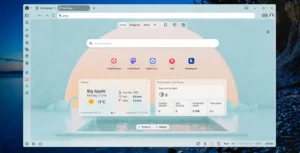
- Change the start page, with speed dials, bookmarks and a clock.
After an hour of tweaking, the browser looks and works like your own. That alone is why some people never go back.
Privacy and Security
Vivaldi blocks trackers by default and warns you about cookie banners. It also gives you a private window, a password manager and an option to clear data when you close the browser.
No browser is perfectly private. Vivaldi uses the Chromium engine, so it receives the same security patches that Chromium gets. Keep automatic updates on. A browser that is out of date is the biggest risk, whichever one you use.
You can read more about the browser and its privacy policy on the official Vivaldi website.
Use Cases: Where Vivaldi Fits
Students. Keep each subject in its own workspace. Take notes next to the lecture or article. Capture diagrams as images. Use a side panel for a translator or dictionary.
Researchers and writers. Tile two pages to compare sources. Group related tabs into a stack. Save quick thoughts in Notes. Feed reader subscriptions bring new posts to one place.
Developers and designers. Open documentation beside a test page. Use Capture for full-page shots. Chromium developer tools work as you would expect, and the extension store is the same as Chrome’s.
Traders and market watchers. Keep charts, news and a broker page open in tiles. A panel can hold a live ticker or a currency page. Workspaces keep the trading day apart from personal browsing.
Office and freelance work. Mail, calendar and tabs sit in one app. Switch workspaces to move from one client to another. Quick Commands saves time when you handle many accounts.
Older or slower PCs. Vivaldi can hibernate background tabs. That frees memory when you leave a pile of pages open. It will not turn a very old machine into a fast one, but it helps.
Vivaldi Compared With Other Browsers
- Chrome: Chrome is fast and simple, and its tools are hard to beat for Google services. Vivaldi gives you more control and fewer extensions to install. Chrome collects more data by design.
- Edge: Edge ships with the operating system and has its own sidebar and shopping tools. Vivaldi offers deeper tab control and more layout choices.
- Firefox: Firefox uses its own engine and has a strong privacy record. Vivaldi has more built-in tools but follows Chromium, so some sites behave the same as in Chrome.
- Brave: Brave focuses on blocking and rewards. Vivaldi focuses on customization and productivity.
No browser wins on every point. Pick the one that matches how you work.
Installing and Setting Up Vivaldi on PC
The installer runs on Windows 10 and Windows 11 and takes a few minutes. These steps give you a solid start:
- Download the installer from a trusted source and run it.
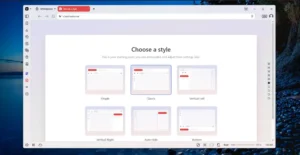
- Pick a theme and a tab bar position when the setup screen appears.
- Import bookmarks and passwords from your old browser.
- Create a Vivaldi account if you want sync across devices.
- Open the blocker settings and choose how strict you want it.
- Press F2 once to see how Quick Commands feels.
Give it a few days. The first hour can feel crowded because there are so many options. Turn off whatever you do not need. Most people settle on a handful of favourite tools.
Pros and Cons
Pros
- Free to use, with no ads and no subscription
- Strong tab control through stacks, tiling and workspaces
- Built-in tools for notes, mail, calendar, feeds and screenshots
- Layout you can change almost entirely
- Works with Chrome extensions
- Syncs across desktop and mobile
Cons
- Too many options for a beginner
- Uses more memory than a bare browser when many tools are on
- Some built-in tools, like mail, are simpler than dedicated apps
- A few sites treat it as an unusual browser, though Chromium compatibility keeps this rare
Frequently Asked Questions
Is Vivaldi Browser free?
Yes. You can download and use all features at no cost.
Is Vivaldi based on Chrome?
It uses the Chromium engine, so it renders pages like Chrome. The interface, features and privacy approach are Vivaldi’s own.
Can I use Chrome extensions in Vivaldi?
Yes. Open the Chrome Web Store and add extensions the same way you do in Chrome.
Is Vivaldi safe?
It gets regular updates and blocks trackers by default. Keep the browser updated and avoid installing files from unknown websites.
Does Vivaldi have an ad blocker?
Yes. An ad and tracker blocker is built in and you can adjust it for each site.
Can I move my bookmarks and passwords from another browser?
Yes. Vivaldi imports data from Chrome, Edge, Firefox and others.
Does Vivaldi work on mobile?
Yes. Android and iOS versions exist, and sync links them to your desktop.
Does it slow down a PC?
It runs fine on most modern machines. On a low-memory computer, switch off tools you do not use and let background tabs hibernate.
What's new
- [Calendar][Panel] Shows "Add your first calendar account" after every start VB-133191
- [Chromium] Update to 156.0.8078.104 ESR includes security fixes from 157.0.8103.78/79
- [macOS] The second window freezes when flipping between two windows VB-133089
- [Mail][Feeds] Cannot display items since 8.3 update with many entries VB-133122
- [Menus] Open Link in Private Window command no longer available VB-133092
- [Menus][Bookmarks] New folder menu item from other bookmarks does not work VB-133081
- [Themes][Tabs] Tabs are changing colour when they should not VB-132958
Download links
How to install Vivaldi?
1. Download the ZIP file.
2. Install the Split APKs Installer application
3. Open the application and click on "Install APKs".
4. Find the folder where the downloaded ZIP is located and select it.
5. Follow the steps that appear on the screen.