
Microsoft Edge
Microsoft
November 15, 2026
205.47 MB
156.0.4314.58
Windows 10 / 11 (64-bit / 32-bit)

Images
Related apps



Description
Microsoft Edge is the web browser Microsoft builds for desktop and mobile. It runs on Chromium, the same open-source engine behind Google Chrome. Pages load the way you expect, and most Chrome extensions install without trouble. Microsoft then adds its own tools on top for tabs, reading, privacy and AI help. This page explains what the browser does, who gets the most from it, and what to check before you install it.
What is Microsoft Edge?
Edge started in 2015 as a replacement for Internet Explorer. That first version used Microsoft’s own engine and never caught on. In 2020 Microsoft rebuilt it on Chromium, and the browser has improved steadily since. It is now the default browser on new Windows PCs, though you can also install it on macOS, Linux, Android and iPhone.
The download on this page is the desktop edition. It is free, it needs no account just to browse, and it updates itself in the background.
Main features of Microsoft Edge Browser
Here are the features people use day to day.
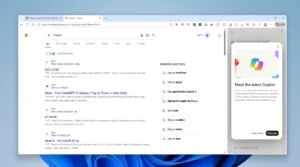
Copilot in Edge. A Copilot button sits in the top right corner of the toolbar. Click it and you can ask for a summary of the page you are reading, a plain explanation of a hard paragraph, or a comparison of products across your open tabs. Edge asks before Copilot reads your tabs or history, and you can switch each permission off in Settings.
Microsoft used to keep these tools in a separate Copilot Mode. It retired that mode in May 2026 and moved the features into the normal browser, so there is nothing extra to turn on. Some features have usage limits, and availability depends on your country.
Vertical tabs. Your open tabs move from the top bar to a panel on the side. Full page titles stay readable, which matters once you have 20 tabs open. Wide monitors gain the most, because they have spare room on the left and right. Open the small arrow at the far left of the tab bar to switch layouts.
Workspaces. A workspace saves a set of tabs under one name, such as “Taxes” or “Trip planning”. Close it when you finish, then reopen the whole set later. It beats bookmarking ten pages one by one.
Tab groups and split screen. Tab groups let you colour-code related pages and collapse them out of the way. Split screen shows two pages side by side in one window. That helps when you copy figures from a spreadsheet into a web form.
Sleeping tabs. Tabs you have not touched for a while go to sleep. They free up memory and processor time for the tab you are using. A sleeping tab looks slightly faded, and it wakes when you click it. You can set how long Edge waits.
Efficiency mode and Startup boost. Efficiency mode cuts background activity to stretch laptop battery. Startup boost preloads part of the browser when you sign in to your PC, so the first window opens faster. Both are optional.
Read aloud and Immersive Reader. Read aloud speaks the page in a natural voice while you do something else. Immersive Reader strips away ads and menus, then lets you change text size, spacing and background colour. Students and anyone who reads long articles tend to like both.
Built-in PDF reader. Edge opens PDFs in a normal tab. You can highlight text, draw on the page and fill in forms without installing another app.
Web capture. Press Ctrl+Shift+S to grab part of a page or the full page. You can then draw on the image and copy it.
Shopping tools. While you shop, Edge can show price comparisons and coupons. Some people find the prompts useful, and others find them noisy. You can turn them off in Settings.
Internet Explorer mode. A few older company sites only work in Internet Explorer. Edge can reload those pages in a compatibility mode, so you do not need the old browser at all.
Privacy and security tools
No browser makes you anonymous. Still, Edge gives you real controls, and most of them need no extra software.
- Tracking prevention has three levels: Basic, Balanced and Strict. Balanced is the default. Strict blocks more trackers, though a few sites may break.
- Microsoft Defender SmartScreen warns you about phishing pages and dangerous downloads before you open them.
- Password Monitor checks your saved passwords against known data leaks and tells you when one shows up.
- InPrivate windows do not save your history, cookies or form entries on your device. Your employer, school or internet provider can still see where you go.
- Edge Secure Network is a built-in VPN for public Wi-Fi. Where it is offered, the free data allowance is limited each month.
Edge also installs security fixes on its own. You rarely need to do anything, so keep automatic updates on.
Extensions, sync and profiles
Edge has its own Add-ons store. It can also install extensions from the Chrome Web Store. Turn on “Allow extensions from other stores” in the extensions page, and your usual ad blocker, password manager or note-taking tool will work.
Sign in with a Microsoft account and Edge syncs favourites, saved passwords, open tabs and settings across your devices. No sync happens until you sign in, and you can choose what it covers.
Profiles are worth setting up. Keep one for work and one for personal browsing. Each has its own history, logins and extensions, so a client’s dashboard never mixes with your shopping.
Moving from another browser takes a few minutes. Open Settings, find Profiles, and choose Import browser data. Edge can bring over bookmarks, passwords and history from Chrome or Firefox.
Who should use Microsoft Edge
Edge fits some people better than others. These are the groups that benefit most.
- Students. Immersive Reader, Read aloud and the PDF tools help with long readings. Copilot can summarise a chapter or quiz you on it.
- Office workers. Workspaces, vertical tabs and split screen keep a heavy day of web apps under control. Separate profiles keep work and personal accounts apart.
- Laptop users. Efficiency mode and sleeping tabs help when you are away from a charger.
- Online shoppers. Price comparison and coupon tools can save money on bigger purchases.
- Web developers. Press F12 for DevTools. They come from the same Chromium base, so the layout will feel familiar if you already use Chrome. You can also test how a site looks on different screen sizes.
- Businesses. IT teams can manage Edge through policies and use Internet Explorer mode for legacy intranet pages.
Microsoft Edge vs Google Chrome
Both browsers use Chromium, so the real differences are smaller than the marketing suggests.
- Site compatibility. Nearly identical. A page that works in Chrome almost always works in Edge.
- Built-in tools. Edge ships with vertical tabs, split screen, Read aloud and a PDF editor. Chrome covers some of these through extensions.
- Accounts. Chrome ties into a Google account. Edge ties into a Microsoft account. Pick whichever ecosystem you already live in.
- Resource use. Both browsers now have tab sleeping and power-saving modes, so the gap is small. Try each on your own machine, since results depend on your hardware and habits.
- Prompts. Edge pushes Microsoft services such as Bing, Copilot and shopping offers. Some people dislike that. Most of these can be switched off in Settings.
Neither one is the right pick for everybody. If you like Edge’s extra tools, use them. If you prefer a plainer window, Chrome is fine too.
How to download and set up Microsoft Edge
Follow these steps for a clean install.
- Click the download button on this page and save the installer.
- Check the file before you run it. Right-click it, open Properties, and look at the Digital Signatures tab. The signer should be Microsoft Corporation.
- Run the installer and follow the prompts. Edge opens when it finishes.
- On first launch, import your bookmarks and passwords from your old browser.
- Pick a tab layout, a tracking prevention level and a search engine. Bing is the default, but you can change it.
- Open Settings, go to Default browser, and make Edge your default if you want links to open in it.
Microsoft keeps its own feature guides and support articles on the official Microsoft Edge page. Check it if a feature looks different on your screen, because Microsoft changes the menus now and then.
Three shortcuts are worth learning on day one:
- Ctrl+Shift+A opens tab search.
- Ctrl+Shift+S starts a web capture.
- Ctrl+Shift+N opens an InPrivate window.
Frequently asked questions
Is Microsoft Edge free?
Yes. The browser costs nothing. Some Copilot features have usage limits, and Microsoft may tie a few extras to a paid plan.
Is Microsoft Edge safe to use?
The browser has strong protections, including SmartScreen and automatic security updates. Safety also depends on you. Download installers only from sources you trust, and keep updates switched on.
Can I use Chrome extensions in Edge?
Yes. Allow extensions from other stores in the extensions page, then add them from the Chrome Web Store.
Do I have to use Copilot?
No. You can ignore the button, and you can usually hide it in Settings. Each feature that reads your tabs or history asks for permission first.
Can I uninstall Microsoft Edge?
On many PCs Edge is part of the system, so removal may be blocked. The rules also differ by region. Setting another browser as your default is the simpler fix.
What's new
- General maintenance and performance update. Includes bug fixes, stability enhancements, and optimizations for Windows.
Download links
How to install Microsoft Edge?
1. Download the ZIP file.
2. Install the Split APKs Installer application
3. Open the application and click on "Install APKs".
4. Find the folder where the downloaded ZIP is located and select it.
5. Follow the steps that appear on the screen.