
Google Chrome
Google LLC
November 15, 2026
163.68 MB
157.0.8103.79
Windows 10 or Windows 11

Images
Related apps




Description
Google Chrome is a free web browser for Windows 10 and Windows 11. You install it once, sign in with a Google account if you want, and your bookmarks, passwords and open tabs follow you to your phone or any other PC. That sync is a big reason people stay with it.
What Chrome does on a Windows PC
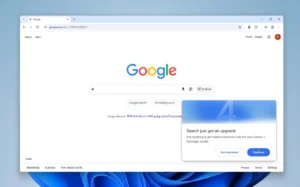
Chrome loads websites, plays video, opens PDF files, runs web apps and manages your downloads. It also doubles as a search tool. Type a question into the address bar, which Google calls the Omnibox, and Chrome shows search results without opening a separate search page first.
The browser runs each tab and extension in its own process. If one tab freezes, the rest keep working. You close the stuck tab and carry on.
Chrome also updates itself in the background. You don’t hunt for patches. When a fix for a security hole arrives, Chrome installs it and asks you to relaunch.
Main features
Most of these are on by default. A few sit in Settings.
- Omnibox: One bar for web addresses and searches. It suggests sites you visited before and answers simple questions, like a unit conversion or a quick calculation, right under the bar.
- Tab groups: You can colour and name a set of tabs, then collapse the group to clear your screen. Researchers and students use this a lot.
- Tab search: A small button at the top of the window lists every open tab. Type a few letters of a page title and jump straight to it. It also finds tabs in other Chrome windows.
- Profiles: Each person or purpose gets its own profile, with separate bookmarks, history and logins. A work profile and a personal profile never mix.
- Google account sync: Bookmarks, history, saved passwords, addresses and open tabs sync across devices. You can choose what syncs.
- Built-in password manager: Chrome offers to save a login, fills it in next time, and warns you if a saved password appeared in a known data leak.
- Translate: Chrome spots a page in another language and offers to translate the whole page. It handles many languages, though the result is machine translation and reads that way.
- Incognito mode: Opens a window that doesn’t save your browsing history, cookies or form entries on that PC. Your internet provider, your employer or the sites you visit can still see your activity.
- Built-in PDF viewer: Open a PDF in a tab, read it, fill in simple forms and print it. No extra software needed.
- Cast: Send a tab to a TV or speaker that supports Google Cast.
- Install as app: Some websites can be installed as a web app. They get their own window and a Start menu shortcut, and they feel like a normal Windows program.
- Task Manager: Press Shift+Esc to see how much memory and processor time each tab and extension uses. You can end the heavy one without closing the browser.
- Reading and page tools: Chrome can find text on a page, zoom the page in or out, and save a page as a PDF through the print dialog.
Speed, memory and battery
Chrome has a reputation for using a lot of RAM. That reputation is fair, since separate processes per tab cost memory. Google has added settings to deal with it.
Memory Saver puts tabs you haven’t used for a while to sleep. When you click one, it reloads. This frees memory for the tab you are working in, and you notice it most on PCs with 4 GB or 8 GB of RAM.
Energy Saver helps on laptops. When your battery runs low, Chrome cuts back on background work and some visual effects. You can set it to turn on at a battery level you pick, or switch it on whenever the laptop is unplugged.
Now, a practical tip. If Chrome feels slow, open the Task Manager first. In many cases one extension or one open web app is the real problem, not the browser itself.
Preloading is another speed feature. Chrome can load a page you are likely to open next, such as the top search result, so it appears almost instantly when you click. You can turn this off in Settings if you prefer.
Privacy and security
No browser makes you invisible online. Chrome gives you tools to limit the damage from bad sites and to control what gets stored.
- Safe Browsing: Chrome checks sites and downloads against a list of known dangerous pages. It shows a full-screen warning before you reach a phishing site or a malware download. An Enhanced Protection option checks more things in real time, though it shares more data with Google to do that.
- Sandboxing: Web pages run in a restricted space. A malicious page has a hard time touching your files or other programs.
- Site permissions: For every site, you decide whether it can use your camera, microphone, location or notifications. Chrome asks first, and you can change the answer later in Settings.
- Clear browsing data: Delete history, cookies and cached files for any time range, from the last hour to all time.
- Passkeys: On supported sites, you can sign in with your fingerprint, face or Windows PIN instead of typing a password.
- Privacy Guide: A step-by-step walkthrough in Settings that explains the main privacy options in plain language.
Keep in mind that Chrome is a Google product. If you sign in and turn on sync, some browsing data connects to your Google account. Review the sync and activity settings once so you know what is shared.
Extensions and the Chrome Web Store
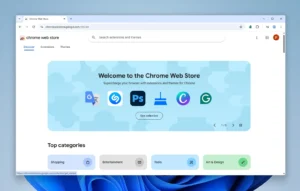
The Chrome Web Store holds thousands of extensions. They add small tools to the browser: ad blockers, password managers, grammar checkers, screenshot tools, PDF converters, SEO analysers, dark mode switches and more.
Extensions can read the pages you visit, so be careful which ones you install. A few habits help:
- Install only what you need.
- Check the developer name, the number of users and recent reviews.
- Read the permissions an extension asks for. A simple colour picker shouldn’t need access to all your data on every site.
- Remove extensions you no longer use from the Extensions page.
Chrome also supports themes. Pick one from the store and the browser changes its colours and top bar.
Who uses Chrome and why
Chrome suits many kinds of people, because the basics are the same for everybody and the extras are optional.
- Students: Tab groups keep research organised, Google Docs and Drive open in the browser, and Translate helps with foreign-language sources.
- Office workers: Profiles separate work from personal logins. Web apps like Gmail, Google Meet, Sheets and many company tools run well in it.
- Designers and marketers: Extensions for colour picking, SEO checks, page speed tests and screenshots turn the browser into a work tool.
- Online shoppers and bank users: Autofill fills in your address and card details after you confirm, and Safe Browsing warns you about fake shopping sites.
- Remote workers: Video calls, shared documents and project tools all work inside tabs, with no extra installs.
- Everyday home users: Streaming, news, email and social media work without any setup beyond installing the browser.
Chrome for developers and testers
Chrome ships with DevTools, a set of inspection tools you open with F12. Developers use it to look at a page’s HTML and CSS, change styles live, read console errors, watch network requests and test how a site behaves on a phone screen.
The Lighthouse panel audits a page for speed, accessibility and SEO basics. It gives a score and a list of fixes. Web developers on Windows often keep Chrome open next to their code editor all day for this reason.
Chrome also uses the same engine as many other browsers, so a site that works in Chrome usually works elsewhere too. That makes it a standard first test.
How to download and install Chrome on Windows
The process takes a few minutes.
- Download the Chrome installer from the download button on this page.
- Double-click the downloaded file. If Windows asks for permission, choose Yes.
- Wait while the installer sets up Chrome. It opens by itself when it finishes.
- Choose whether to sign in with a Google account. You can skip this and sign in later.
- Pick your default search engine and, if you like, set Chrome as your default browser from Settings.
Chrome needs Windows 10 or Windows 11 and a processor that supports SSE3. Any PC bought in the last ten years or so meets that.
If you already have an older Chrome, running the installer updates it. Your bookmarks and settings stay in place.
For detailed help on any setting, Google’s own Chrome Help Center covers each option step by step.
Chrome compared with other Windows browsers
Windows already includes Microsoft Edge, so why install Chrome? Some people prefer Chrome’s sync with their Google account and Android phone. Others need an extension or a web app that works best in Chrome. Edge is built on the same engine, so many Chrome extensions install there too, though not every feature carries over.
Firefox takes a different approach, with its own engine and a stronger focus on privacy defaults. Chrome tends to win on compatibility, since web developers test against it first.
None of these browsers is the right pick for everyone. If you use Gmail, Google Drive and an Android phone daily, Chrome fits that routine naturally.
Frequently asked questions
Is Google Chrome free?
Yes. You don’t pay for the browser, and it has no premium version for personal use.
Does Chrome work offline?
Pages that need the internet won’t load without it. Some web apps, such as Gmail and Google Docs, can work offline once you set that up, and downloaded files open as usual.
Can I run Chrome with more than one account?
Yes. Create a separate profile for each person or purpose. Each profile has its own bookmarks, history and logins.
Why does Chrome use so much RAM?
Each tab and extension runs as a separate process, which costs memory. Turn on Memory Saver, remove extensions you don’t need, and close tabs you’ve finished with.
How do I make Chrome my default browser?
Open Settings, go to Default browser and choose Make default. Windows may open its own default apps page, where you confirm the choice.
How do I update Chrome?
Chrome updates itself. To check manually, open the three-dot menu, go to Help and choose About Google Chrome. If an update is waiting, relaunch the browser to finish it.
Is Incognito mode fully private?
No. It only stops Chrome from saving your history and cookies on that PC. Websites, your network and your internet provider can still see what you do.
Can I use Chrome extensions on Android?
Not in the same way. Chrome on Windows supports a large extension library, while Chrome on Android does not offer the same support.
What's new
- General maintenance and performance update. Includes bug fixes, stability enhancements, and optimizations for Windows.
Download links
How to install Google Chrome?
1. Download the ZIP file.
2. Install the Split APKs Installer application
3. Open the application and click on "Install APKs".
4. Find the folder where the downloaded ZIP is located and select it.
5. Follow the steps that appear on the screen.