
CrystalDiskInfo
hiyohiyo
October 11, 2026
5.93 MB
9.9.5
Windows 10 / 11 (64-bit / 32-bit)

Images
Related apps





Description
Every hard drive and SSD keeps a log of its own condition. CrystalDiskInfo reads that log and shows it in one small window. You see the drive’s health, temperature and error counts without opening anything technical. People also search for it as Crystal Disk Info, but it is the same free tool.
The program cannot repair a drive. What it does is warn you early, so you can copy your files somewhere safe while the drive still works.
What CrystalDiskInfo Does
CrystalDiskInfo is a small disk monitoring utility for Windows. It talks to your storage drives and pulls out their S.M.A.R.T. data. S.M.A.R.T. stands for Self-Monitoring, Analysis and Reporting Technology. Almost every hard drive and SSD made in the last twenty years has it built in.
The drive counts things all the time: how many hours it has run, how hot it gets, how many sectors failed, how much data you wrote. Normally you never see these numbers. CrystalDiskInfo collects them and turns them into a plain status you can read in a second.
The tool is open source and free for personal use. It has no ads inside the app, and it does not need an account. You can read more about the project on the official CrystalDiskInfo page.
Who Needs This Software
You do not need to be a technician. If your PC stores anything you care about, the tool is useful.
- Home users who keep photos, school work or documents on one drive
- Buyers of a used laptop or a second-hand drive
- Gamers who want to watch SSD temperature during long sessions
- Freelancers and small shops that run business data on a single machine
- Repair technicians who need a fast first check on a customer’s PC
Used drives are a good example. A seller may say the SSD is “like new”. The power-on hours and total data written will tell you if that is true. No seller can change those counters from the outside.
Main Features
Health status in one word
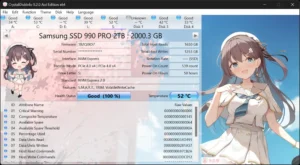
The big badge at the top shows the verdict. It reads Good, Caution, Bad or Unknown. The colour changes with it, so you notice even from across the room.
- Good means every attribute is inside the maker’s limits
- Caution means at least one value has crossed a warning line
- Bad means a value has reached a failure threshold
- Unknown usually means the drive does not share enough data
Caution does not mean the drive dies tomorrow. Sometimes an old, harmless event pushes one value over the line. Still, treat it as a signal to back up your data today.
Live temperature
Heat shortens the life of a drive. CrystalDiskInfo shows the current temperature for each disk. It can also keep an icon in the notification area that displays the number all the time. For NVMe drives, which run hotter than most SATA drives, this is worth watching.
Temperature alone will not destroy your data. Constant high heat does speed up wear, and it can make an NVMe drive slow itself down to cool off.
Full S.M.A.R.T. attribute list
Below the health badge you get a table of attributes. Each row shows a current value, a worst value, a threshold and a raw number. It looks like a lot at first. You only need to learn a few rows, and the next section covers them.
Alerts by sound and email
The program can run in the background and check your drives at set times. If a status changes, it can play a sound. It can also send an email, which helps if you manage a PC in another room or another office. You set the check interval yourself.
Graphs of changes over time
The tool records values as it runs. You can open a graph and see how temperature, power-on hours or a wear counter moved over days or weeks. A slow climb in bad sectors is easier to spot on a graph than in a single reading.
Support for many drive types
CrystalDiskInfo reads SATA hard drives and SSDs, NVMe SSDs, and many USB external drives. Some USB cases block S.M.A.R.T. data. If your external drive shows up as Unknown, the case is often the reason, not the drive.
Power and noise controls
On drives that support them, the tool offers AAM and APM settings. AAM changes how loud a hard drive sounds while it seeks. APM changes how aggressively the drive saves power. Most people will never touch these, though a noisy old hard drive can sometimes be calmed down.
Themes and languages
The interface comes in many languages. You can also change the look with built-in themes, including the character-based Shizuku edition. It sounds like a small thing, but it makes the window less dull if you keep it open.
How to Read the Important S.M.A.R.T. Values
Most rows in the table matter only to engineers. These are the ones that tell you the most.
For hard drives
- Reallocated Sectors Count: the number of damaged sectors the drive moved elsewhere. A small steady number is tolerable. A number that keeps growing is a bad sign.
- Current Pending Sector Count: sectors the drive wants to move but cannot yet. Any value above zero deserves attention.
- Uncorrectable Sector Count: errors the drive could not fix. This should stay at zero.
- Spin Retry Count: how often the motor struggled to start. A rising number often points to a mechanical problem.
- Power-On Hours: total time the drive has run. It shows age, nothing more.
For SSDs and NVMe drives
- Percentage Used (or a Life remaining figure): how much of the rated wear is gone. When it nears the limit, plan a replacement.
- Available Spare: reserve blocks the drive keeps to replace worn ones. A falling number matters.
- Critical Warning: a flag the drive raises when something is wrong. It should read zero.
- Total Host Writes: how much data your PC has written in its life. Compare it with the maker’s endurance rating.
- Media and Data Integrity Errors: should also stay at zero.
Look at the raw value, not only the normalised one. A drive can show a raw count of a few hundred and still report Good, because each maker sets its own thresholds. If the raw number climbs between two checks, act on that trend.
How to Use CrystalDiskInfo
You will need administrator rights, because the program reads data straight from the drive.
- Download the installer or the portable package from the official page.
- Install it, or extract the portable folder anywhere you like.
- Open the program. It scans your drives and shows the first one.
- Click a drive name at the top to switch between disks.
- Check the health badge and the temperature first.
- Scroll through the attribute table and look at the rows listed above.
- Open the Function menu to turn on alerts, startup launch and the notification icon.
That is all. The first scan takes a few seconds.
Installer or Portable Edition
Both editions show the same data, so pick by how you work.
The installer suits your own PC. It adds shortcuts, remembers your settings and can start with the system, so monitoring continues in the background.
The portable edition suits technicians. You keep it on a USB stick, plug it into a customer’s PC and run it with no install. Nothing is left behind on that machine afterward.
Real Use Cases
Checking a used laptop or SSD before you pay. Open the tool, read the power-on hours and total writes, and look at the health badge. This takes one minute and can save you a bad purchase.
Monthly health check on a home PC. Open it once a month. If Reallocated Sectors or Pending Sectors start rising, copy your files to another drive that week.
Watching an NVMe drive that runs hot. If your SSD gets slow during large file copies or games, the temperature display tells you whether heat is the cause. A better heatsink or more case airflow may fix it.
Monitoring an office PC from afar. Turn on the email alert. When a drive changes from Good to Caution, you hear about it without walking over to check.
Quick triage for repair shops. A customer says the PC freezes. A bad drive is one of the first things to rule out, and this tool does that faster than most.
Limits You Should Know
CrystalDiskInfo is useful, but it has edges.
- It reports what the drive says about itself. A drive can fail suddenly with no earlier warning, so a Good badge is not a promise.
- It does not test read and write speed. For that you need a separate benchmark.
- It does not scan the surface for bad areas or fix them.
- Some USB cases and some RAID setups hide S.M.A.R.T. data.
- The wording of each attribute differs between makers, so a number that worries you on one brand may be normal on another.
No monitoring tool replaces a backup. Keep important files in two places, and let CrystalDiskInfo tell you when it is time to move them.
Similar Tools
You may see other names while comparing options. HWMonitor and HWiNFO show drive temperature along with other hardware sensors, though they give less detail on S.M.A.R.T. health. Many drive makers also publish their own utilities for their SSDs, and those can update firmware, which CrystalDiskInfo does not do. The two kinds of tool work well together.
Frequently Asked Questions
Is CrystalDiskInfo free?
Yes. It is free for personal use and open source.
Does it work with SSDs?
Yes. It reads SATA SSDs and NVMe SSDs, and it shows wear and spare capacity for them.
What should I do if the status says Caution?
Back up your data first. Then look at which attribute triggered the warning. If the raw value keeps rising, replace the drive.
Can it recover files or repair bad sectors?
No. It only reports the condition of the drive.
Why does my external drive show Unknown?
The USB enclosure may block S.M.A.R.T. data. Try a different cable or connect the drive directly to a SATA port.
Do I need to keep it running all the time?
No. A check once a month is enough for most people. Turn on background monitoring if the PC holds data you cannot lose.
What's new
- See full release notes: https://crystalmark.info/en/software/crystaldiskinfo/crystaldiskinfo-history/
Download links
How to install CrystalDiskInfo?
1. Download the ZIP file.
2. Install the Split APKs Installer application
3. Open the application and click on "Install APKs".
4. Find the folder where the downloaded ZIP is located and select it.
5. Follow the steps that appear on the screen.