
Malwarebytes
Malwarebytes
October 15, 2026
413.08 MB
5.7.3.376
Windows 10 / 11 (64-bit / 32-bit)

Images
Description
Malwarebytes finds and removes threats that a regular antivirus often lets through. That means adware, spyware, browser hijackers, potentially unwanted programs (PUPs) and ransomware. You run a scan, review what it found, and remove the items you choose.
Most people meet Malwarebytes the same way. The PC turns slow, the browser homepage changes by itself, or pop-up ads appear on sites that never had them. Someone says “run Malwarebytes,” and ten minutes later the problem is gone.
These days it does more than cleanup. The Premium version watches your computer all day and blocks threats before they run. Here is what the Windows version does, who should use it, and where it falls short.
What Malwarebytes Actually Does
Malwarebytes is a security program built around one job: detect malicious files and behaviour, then remove them. It does not try to be a full suite with a firewall, a password vault and a dozen add-ons.
That narrow focus is why many people install it next to another antivirus. The two tools do different work. Malwarebytes also has compatibility settings for PCs that already run antivirus software, so you do not have to choose one or the other.
The scanner is strongest in the grey area. A PUP is not always a virus. It can be a “free” toolbar, a fake system optimiser or a coupon extension that tracks your browsing. Many antivirus tools ignore these. Malwarebytes flags them, and you decide what stays.
Free Version vs Premium
The free version is a scanner. You open it, start a scan and clean what it finds. It does not watch your PC in the background, so it only helps after something has already landed.
Premium adds the parts that stop threats in time:
- Real-time protection with four layers (covered below)
- Scheduled scans that run on their own
- Uninstall protection, so malware cannot quietly remove Malwarebytes
- Brute-force protection against password-guessing attacks on your PC
Fresh installs usually start with a 14-day Premium trial. When it ends, you can subscribe or keep the free scanner. Trial users who do not subscribe lose real-time protection at that point. Check the dashboard on day 15 so you know where you stand.
Main Features of Malwarebytes
Threat Scan and Custom Scan
Threat Scan is the one most people use. It checks the places malware likes to hide, such as running memory, startup items, the registry and common file locations. It finishes faster than a full disk crawl.
Custom Scan is for targeted checks. Point it at a USB drive, an external hard disk or your Downloads folder. This is handy when a friend hands you a pen drive full of software.
Quarantine
Removed items go to quarantine first, not straight to the bin. If Malwarebytes flags something you trust, you can restore it. No scanner is perfect, and false positives do happen. Quarantine makes them a small annoyance instead of a lost file.
Allow List
Add a file, folder or website to the Allow List and Malwarebytes stops flagging it. Older business software, such as billing or inventory tools, sometimes behaves in ways that look suspicious. The Allow List fixes that without turning protection off.
Reports and History
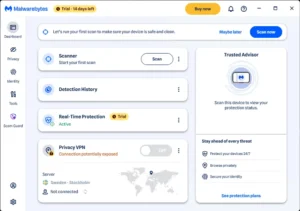
The app keeps a record of every scan and detection. Open it later to see what was found and when. The Real-Time Protection screen also lists what Malwarebytes blocked in the last 30 days. Seeing the numbers helps you judge whether the software is earning its place.
Scheduled Scans
Premium lets you set a daily or weekly scan. Pick a time when the PC is on but idle, like late evening or lunch break. A scan that runs while you are editing video will feel slow. The same scan at night is invisible.
The Four Layers of Real-Time Protection
Real-time protection is the main reason to pay for Premium. It has four layers, and each one covers a different way in. Malwarebytes describes the layers on its Real-Time Protection help page, which is worth a read if you want the official wording.
- Malware Protection: checks files as they are opened, downloaded or run. A malicious file gets blocked before it does damage.
- Web Protection: blocks dangerous websites and servers before the page loads. No page load, no infection.
- Exploit Protection: guards programs such as browsers, Office apps and PDF readers. Attackers often abuse a bug in these programs instead of tricking you into running a file.
- Ransomware Protection: watches for programs that behave like ransomware, for example one that starts locking files in bulk. It stops them early.
The dashboard shows each layer with its own switch. Keep all four on. Turning one off leaves a gap, and the app recommends switching any disabled layer back on as soon as possible.
Real-time protection also catches what a scheduled scan cannot. A scan tells you what is on the PC right now. A live layer stops the file at the door, so there is nothing to clean up later.
Browser Guard
Browser Guard is a free extension for Chrome, Edge and Firefox. It works on its own, so you do not need Premium to use it. The setup wizard offers to install it, and you should say yes.
It blocks several things before a page finishes loading:
- Scam and phishing pages
- Websites known to host malware
- Ads and third-party trackers
- Malicious downloads
Malwarebytes also lists protection against online credit card skimmers among its browser features. That matters if you shop online from a shared or older PC.
When Browser Guard blocks a page, you see a warning screen instead of the site. You can still choose to continue if you are sure the page is safe. Think twice before you do.
Who Should Use Malwarebytes
Malwarebytes fits more people than you might expect:
- Anyone whose PC turned slow or strange after installing free software
- People who want a second opinion after their antivirus says everything is clean
- Families who share one computer, where kids download games and apps
- Small shops and freelancers who keep billing records and client files on a single PC
- Anyone who downloads a lot of software and wants to scan installers before running them
The small-business case deserves a closer look. Ransomware hurts these users the most, because backups are rare and the PC holds the whole business. One locked billing file can stop a shop for days. Ransomware Protection and Exploit Protection exist for exactly this situation.
No tool replaces common sense, though. Malwarebytes cannot stop you from typing a password into a fake page you chose to trust. Web Protection and Browser Guard catch many of those pages, but not all.
How to Use Malwarebytes: First Run
Setup takes a few minutes. Follow these steps:
- Download the installer and run it.
- Choose how you will use it when asked, personal use or your organisation.
- Install Browser Guard when the app offers it.
- Open the dashboard and start a Threat Scan.
- Review the results, tick the items you want removed and confirm.
- Restart the PC if the app asks you to.
- Check that all four Real-Time Protection layers are on (Premium or trial).
- Set up a scheduled scan.
Close heavy programs before the first scan. It finishes faster that way. Also update the app’s detection database first. Scans run without internet, but they only catch the newest threats if the database is current.
Cleaning a Slow or Infected PC
Say your browser keeps redirecting to a search page you never chose. Here is a sensible order:
- Run a Threat Scan and remove everything it flags.
- Restart the computer.
- Run a second Threat Scan. Some stubborn items only show up after a restart.
- Open your browser extensions and delete anything you do not recognise.
- Reset the browser homepage and search engine if they still look wrong.
- Change important passwords from a clean device if you think data was stolen.
Run the second scan even when the first looks clean. It takes a few minutes and often finds leftovers.
Using Malwarebytes With Microsoft Defender
Defender is built into the operating system and handles baseline protection. Malwarebytes can sit beside it as a second layer. It adds browser protection and its own detection of PUPs and exploit attacks.
During setup the app can adjust itself for a PC that already has another antivirus. If you see no slowdown, leave both running. If the PC feels heavy, check the compatibility settings before you remove either tool.
Strengths and Limits
What Malwarebytes does well:
- Finds PUPs, adware and browser hijackers that other tools skip
- Simple dashboard with little to learn
- Free scanner is useful even if you never pay
- Quarantine and Allow List reduce the pain of false positives
- Browser Guard is free and works in three major browsers
Where it falls short:
- The free version has no real-time protection
- It is not a full security suite, so there is no firewall
- It cannot unlock files after ransomware has already encrypted them
- Scans can slow an older PC while they run
Common Questions
Is Malwarebytes free?
The scanner is free for manual scans. Real-time protection and scheduled scans need Premium or the trial period. Browser Guard is free either way.
Does Malwarebytes slow down the PC?
Only slightly in most cases, and mostly during a scan. Older machines with little RAM feel it more. Idle protection is light.
Can Malwarebytes replace my antivirus?
Premium covers malware, web, exploit and ransomware layers, so some users run it alone. Others keep Microsoft Defender running too. Either setup works. The real mistake is relying on the free scanner alone and calling it protection.
Can it recover files that ransomware encrypted?
No. It can remove the ransomware program, but it cannot unlock your files. Keep an offline backup, such as an external drive you unplug after copying.
How often should I scan?
With Premium, one scheduled scan a week is plenty because real-time protection handles the rest. On the free version, scan once a week and again whenever the PC acts strange.
What's new
- General maintenance and performance update. Includes bug fixes, stability enhancements, and optimizations for Windows.
Download links
How to install Malwarebytes?
1. Download the ZIP file.
2. Install the Split APKs Installer application
3. Open the application and click on "Install APKs".
4. Find the folder where the downloaded ZIP is located and select it.
5. Follow the steps that appear on the screen.