
Git
Junio Hamano
November 10, 2026
63.75 MB
2.56.0.4
Windows 10 / 11 (64-bit / 32-bit)

Images
Related apps





Description
You changed a few files in your project, saved everything, and later discovered that something stopped working. Now you need the earlier code, but you cannot remember exactly what you changed. Git solves this problem by keeping a history of your work. You can compare edits, recover previous code, and experiment without permanently losing a working project.
Git is a free, open-source version control system used by developers to track changes in files. It works on your computer and can also connect to online repositories hosted on services such as GitHub, GitLab, and Bitbucket.
The software is useful for personal coding projects, website development, application development, and collaborative work. You can use it without creating an online account or uploading your files to a server.
What Is Git?
Git records changes made to files inside a project folder. Instead of saving separate copies named project-final, project-final-new, and project-final-fixed, you can keep one project and record its progress through commits.
A commit is a saved snapshot of selected changes. Each commit has an identifier and can include a message explaining what changed. If a new feature breaks something, Git lets you inspect earlier commits to find where the problem began.
Git was originally created by Linus Torvalds for Linux kernel development. It has since become a common tool for managing software projects.
Unlike systems that rely on a central server for every operation, Git stores repository history locally. You can review commits, create branches, and record new changes without an internet connection.
Git also works with more than programming files. It can track documentation, configuration files, and other project content. It is particularly useful for text-based files because it can show the lines someone added, edited, or deleted.
Git for Windows: What Does the Software Include?
The Git installation provides several tools for working with repositories. Some are designed for command-line users, while others offer a visual interface.
Git Bash
Git Bash gives you a terminal where you can run Git commands and many familiar Unix-style shell commands.
For example, you can open a project folder, check its status, create a branch, or download a repository from GitHub.
Developers who follow tutorials written for Linux or macOS will find Git Bash useful because many common commands work in a similar way.
You do not need to learn every terminal command before using it. A small set of commands covers most everyday tasks.
Git GUI
Git GUI provides a graphical interface for common Git operations.
Instead of typing commands for every task, you can inspect modified files, stage changes, create commits, and work with branches through menus and buttons.
The interface is fairly simple compared with dedicated desktop Git clients. Still, it gives beginners a way to work with repositories without relying entirely on the terminal.
Git Credential Manager
When you connect Git to an online hosting service, the service may ask you to authenticate.
Git Credential Manager helps handle authentication and securely stores supported credentials through the operating system’s credential facilities.
This reduces the need to enter account details repeatedly. The exact sign-in process depends on the repository hosting service.
File Explorer Integration
Git can add context-menu shortcuts to File Explorer. You can open Git Bash or Git GUI directly from a project folder when those integration options are enabled.
This is useful when you work on several projects and regularly switch between directories.
Main Features of Git
Git has plenty of advanced commands, but most developers use a smaller group of features during their daily work.
1. Track Changes to Project Files
Git detects files that have been added, modified, or deleted inside a repository.
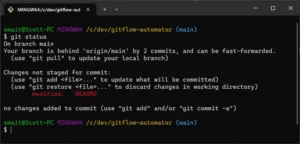
The git status command shows what has changed since your previous commit. You can then decide which files belong in your next saved snapshot.
For text files, git diff shows the differences between the current content and an earlier state. That makes it easier to spot an accidental edit before committing it.
2. Save Work Through Commits
A commit records a snapshot of the files you choose to include.
For example, after building a website’s contact form, you might save a commit with the message Add contact form validation.
Later, you could create another commit for a payment feature or a design change.
Each commit becomes part of the project’s history. You can inspect that history to understand how the project developed.
Commits are not automatic backups of every file on your computer. Git records the content you stage and commit, so changes you never commit may still be lost.
3. Create Branches for Separate Work
Branches let you develop features without immediately changing your main line of work.
Suppose you maintain an online store and want to redesign its checkout page. You can create a branch for the redesign while keeping the existing checkout code on the main branch.
Once the new design works, you can merge those changes.
If the experiment fails, you can leave the main branch untouched and return to the earlier work.
4. Compare and Restore Previous Changes
Git keeps a record of committed project states. You can review older code, compare commits, or restore selected files.
This becomes useful when a bug appears after several edits.
You can inspect the history rather than guessing which file caused the problem.
Git also provides commands for reverting changes. Some restore earlier content, while others create new commits that undo previous work. Choosing the right command matters, especially when several people share a repository.
5. Work With Remote Repositories
Git supports local repositories as well as remote repositories hosted on another computer or online service.
You can clone an existing project to your computer, work on its files, and send committed changes back to the remote repository.
Common operations include:
- Clone: Copy an existing repository and its history.
- Fetch: Download remote repository information without merging it into your current branch.
- Pull: Fetch remote changes and integrate them into your current branch.
- Push: Upload local commits to a remote repository.
- Merge: Combine changes from different development branches.
These operations make Git practical for teams whose members work from different locations.
6. Ignore Unnecessary Files
Not every file belongs in a repository.
Temporary files, generated output, local configuration, and dependency folders may not need to be tracked.
A .gitignore file tells Git which untracked files or folders to ignore.
For example, a web development project might exclude generated cache files, installed dependencies, and local environment files containing secrets.
An ignore rule does not automatically remove files already tracked by Git. Those files need separate handling.
What Can You Use Git For?
Git is closely associated with software development, though its uses extend beyond writing code.
Website Development
Imagine you manage a website and regularly change its layout, plugins, or backend code.
You add a new navigation menu, update a few templates, and modify the contact form. After publishing the changes, the form stops working.
If those changes were committed, you can inspect the earlier code and identify what changed.
Git also helps when working on staging and production environments. You can test new website features in a separate branch before merging them into the main codebase.
However, Git does not automatically deploy your website or back up its live database. Those tasks require separate tools or workflows.
Mobile and Desktop Application Development
Application developers often work on several features at once.
One person might build the login screen while another works on notifications. Git lets both developers maintain separate branches and combine their work later.
It can also keep a record of changes made to application configuration, source files, and project documentation.
This is useful when developers need to investigate bugs introduced during development.
Working With GitHub and GitLab
Git is the version control software. GitHub and GitLab are services that host repositories and provide collaboration features.
You do not need GitHub to use Git, and installing Git does not automatically create a GitHub account.
When you connect a local project to a hosting service, you can push your commits and make the repository accessible to authorized collaborators.
Hosted services may also provide pull requests or merge requests, issue tracking, and automated development workflows.
For example, you can clone an open-source project, create a branch, fix a problem, and submit the changes for review.
Managing Personal Projects
Git is useful even if you work alone.
Suppose you are building a Python script that collects data from an API. The script works, but you want to change how it processes the response.
You can commit the working code before making the changes.
If the new approach causes errors, you still have the earlier working state in your repository.
No remote server is required for this workflow.
Tracking Documentation and Configuration
Git can also manage Markdown documents, technical notes, configuration files, and other text-based content.
A team maintaining product documentation can use commits to see when instructions changed and who made the edit.
Git can store binary files too, but ordinary Git repositories are less convenient for frequently changing large binary assets. Git Large File Storage is an option for projects that need to manage those files.
How to Install Git
Download the Git installer from the download section of this page. The installer will guide you through the setup process.
During installation, you may see options for choosing a default editor, configuring how Git works from the command line, and setting other preferences.
For most beginners, the recommended settings are a reasonable starting point.
After installation, open Git Bash from the Start menu. Enter the following command to confirm Git is available:
git --versionThe terminal should display the installed Git release information.
You can also open Command Prompt or PowerShell and run the same command if Git was added to the appropriate system path during installation.
If your terminal cannot find Git, check the installation settings or reopen the terminal after setup.
How to Start Using Git
Once Git is installed, you can create your first local repository.
Step 1: Configure Your Identity
Git uses a name and email address to identify the author of commits.
Open Git Bash and enter:
git config --global user.name "Your Name"
git config --global user.email "[email protected]"
Replace the examples with the identity you want attached to your commits.
These details do not sign you into GitHub or another hosting service. They become part of the commit metadata.
Step 2: Create a Repository
Open an existing project folder in Git Bash and run:
git initGit creates a hidden .git directory containing repository information.
Your existing project files remain in place.
Step 3: Check Your Files
Run:
git statusGit will show files it has not started tracking, along with any staged or modified files.
Step 4: Stage and Commit Changes
To stage the files in your current project directory, use:
git add .Review the staged files before committing, particularly if the project contains passwords, API keys, or private configuration.
Then create a commit:
git commit -m "Initial project setup"You now have a saved point in the repository history.
Step 5: Review Your Commit History
Run:
git log --onelineGit displays a compact list of commits and their messages.
As your project grows, this history helps you locate earlier work.
If you want to download an existing project instead, use git clone followed by its repository URL.
Git vs GitHub: Are They the Same?
Git and GitHub serve different purposes, although developers frequently use them together.
Git manages file history and source code changes on your computer.
GitHub hosts Git repositories online and adds features for collaboration, code review, and project management.
For example, you could create a project on your computer, record several commits with Git, and later push that repository to GitHub.
You can also use Git with GitLab, Bitbucket, or your own Git server.
If you only need to track a personal project locally, Git can work without any hosting service.
Is Git Free and Safe to Use?
Git is free, open-source software distributed under the GNU General Public License version 2.
You do not need a subscription to use its core version control features. Git also does not require a paid account to create local repositories.
For a trusted installation, use an authentic installer from the project or a reputable software distributor.
The official Git for Windows website provides information about the Windows distribution and its included tools.
Git itself is not an antivirus program or a security scanner. It does not guarantee that files inside a repository are safe.
Be cautious when running scripts from unknown repositories. Git can retrieve project files, but you still need to decide whether to execute code supplied by someone else.
Avoid committing passwords, private keys, access tokens, and other sensitive information. Removing a secret from the latest file does not necessarily remove it from earlier repository history.
Common Problems Beginners Face
Git Command Is Not Recognized
If your terminal displays an error saying git is not recognized, Git may not be available through your system’s command path.
Try opening Git Bash directly. If that works, the installation may be fine, but your other terminal does not know where to find Git.
Recheck the command-line integration setting if you need Git in PowerShell or Command Prompt.
Git Asks for a Username or Password
When accessing a remote repository, Git may need authentication.
Many hosting services use browser-based sign-in, access tokens, or SSH keys rather than ordinary account passwords for Git operations.
Check the authentication method supported by your chosen service.
Merge Conflicts
A merge conflict happens when Git cannot safely combine changes on its own.
For example, two developers might edit the same lines of a configuration file in different branches.
Git marks the conflict so someone can review both changes and decide what the final file should contain.
After resolving the conflict, you stage the corrected file and complete the relevant merge operation.
Accidentally Staging Too Many Files
Running git add . can stage more files than you intended.
Before committing, check git status and review your staged changes.
Use .gitignore for files that should not normally enter the repository. Avoid committing private environment files or folders full of generated dependencies.
Who Should Download Git?
Git is a practical choice for developers, students, technical writers, and anyone who regularly edits project files.
If you create websites, write scripts, develop applications, or contribute to open-source software, it gives you a structured way to manage your work.
Beginners can start with Git GUI or learn a handful of Git Bash commands. Developers using editors such as Visual Studio Code can also work with Git through built-in source control features.
Git is less useful for someone who only wants to download ordinary applications or store personal photos. It is designed to track project changes, not to replace general file backup or cloud storage software.
For your first project, start with a local repository, make one small change, and commit it. Then edit the same file again and use git diff to inspect what changed. That simple exercise shows how Git handles the work you do every day.
What's new
- Changes since Git for Windows v2.56.0(3) (October 22nd 2026)
- This is another urgent security bug fix release, addressing CVE-2026-111497.
- Bug Fixes
- The executables included in the 32-bit MinGit had corrupt code-signatures, which has been fixed.
- Upgrades the included brotli component to v1.2.1 to address CVE-2026-111497.
Download links
How to install Git?
1. Download the ZIP file.
2. Install the Split APKs Installer application
3. Open the application and click on "Install APKs".
4. Find the folder where the downloaded ZIP is located and select it.
5. Follow the steps that appear on the screen.
-
Popular Apps
-
 Visual Studio Code1.146.0 Microsoft
-
 Mister Download Manager0.5.2 Ahmed Nefzaoui
-
 Malwarebytes5.7.3.376 Malwarebytes
-
Discord1.0.9269 Discord Inc.
-
 Google Chrome157.0.8103.79 Google LLC
-
Git2.56.0.4 Junio Hamano
-
 TeamViewer15.83.5 TeamViewer SE
-
 Opera140.0.6074.18 Opera Norway AS
-
 ImgBurn2.5.8.0 LIGHTNING UK!
-
 Microsoft Edge156.0.4314.58 Microsoft
-

