
Visual Studio Code
Microsoft
November 11, 2026
272.85 MB
1.146.0
Windows 10 / 11 (64-bit / 32-bit)

Images
Related apps





Description
Visual Studio Code lets you write, edit, debug, and manage code without switching between several applications. You can open an entire project, browse its files, run terminal commands, inspect errors, and track changes through Git. Microsoft develops the editor, commonly called VS Code, and offers it free of charge.
The software works with programming languages such as JavaScript, Python, HTML, CSS, Java, C++, and PHP. Some languages have built-in editor support, while others need extensions for features such as debugging or advanced code suggestions.
Unlike a traditional text editor, VS Code recognizes programming syntax and provides tools to work across connected files. It suits people learning to code as well as developers who maintain websites, applications, scripts, and larger software projects.
What Is Visual Studio Code?
Visual Studio Code is a free source code editor developed by Microsoft. It provides a workspace where developers can create files, work with project folders, run commands, and investigate problems in their code.
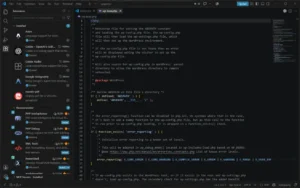
The main window contains a file explorer, editing area, activity bar, and optional bottom panel. You can open several files in tabs or arrange editors side by side. The file explorer shows your project’s folder structure, so you do not need a separate application to browse files.
VS Code is not the same product as Microsoft Visual Studio. Visual Studio is a larger integrated development environment with extensive tooling for certain application development workflows. VS Code takes a more modular approach. You start with an editor and add the tools your project needs.
For example, someone building a basic website may only need HTML, CSS, and JavaScript editing. A Python developer might install an extension for debugging and environment management. Both can use the same editor without maintaining identical setups.
Visual Studio Code Features
VS Code includes several tools that would otherwise require separate applications. Some are available immediately, while others depend on the programming language or extensions you install.
1. Syntax Highlighting and Code Editing
When you open a supported source file, VS Code identifies parts of the code and displays them in different colors. Keywords, strings, comments, and other language elements become easier to distinguish.
Coloring alone does not prevent mistakes, though it makes unfamiliar code easier to read.
The editor also supports automatic indentation, bracket matching, code folding, and multiple cursors. Multi-cursor editing is particularly useful when several lines need the same change.
Suppose a CSS file contains the same color value in several places. You can select matching text and edit multiple occurrences rather than changing each line separately.
2. IntelliSense Code Suggestions
IntelliSense provides context-aware suggestions while you type. Depending on the language, it can suggest variables, functions, properties, methods, and parameters.
For example, when writing JavaScript, you may see available methods after typing a dot following an object. IntelliSense can also show information about a function’s expected arguments.
This helps when working with unfamiliar code or libraries. You still need to understand the suggested code, since an accepted suggestion is not necessarily the right solution.
The depth of IntelliSense support varies by language. Extensions can add richer language services where the built-in editor provides only basic suggestions.
3. Integrated Terminal
The terminal is one of the most practical reasons to use Visual Studio Code for development.
You can open a command-line session inside the editor instead of repeatedly switching to PowerShell or Command Prompt. VS Code can also work with other installed shells, such as Git Bash.
Developers use the terminal to:
- Run Node.js and Python scripts.
- Install packages with npm or pip.
- Execute Git commands.
- Start local development servers.
- Run build tools and project scripts.
- Check errors reported by command-line programs.
Consider a website built with a JavaScript framework. You can edit its files, start the development server in the terminal, and return to the browser to inspect the result.
The terminal runs the tools installed on your computer. VS Code does not automatically provide every programming language, compiler, or package manager.
4. Built-in Git Support
Visual Studio Code includes a Source Control view for working with Git repositories.
It shows modified files and lets you review changes before committing them. You can stage files, create commits, work with branches, and inspect differences between file revisions.
For someone updating a website, this provides a useful record of what changed. If an edit causes trouble, Git history can help you find the earlier code.
The interface does not remove the need to understand Git. You still need to know when to commit, how branches work, and what happens during a merge.
Git must be available on your system for normal local Git operations. Remote services such as GitHub and GitLab can be used with the appropriate authentication and workflow.
5. Extensions Marketplace
VS Code offers an Extensions view where you can search for tools that add features to the editor.
Extensions can provide support for programming languages, formatting, linting, debugging, themes, and project-specific workflows.
Common examples include:
- Python: Language tools, environment support, and debugging features.
- Prettier: Code formatting for supported file types.
- ESLint: JavaScript and TypeScript linting.
- Live Server: Local browser preview workflows for static web pages.
- Remote Development: Tools for working with supported remote environments.
Not every extension comes from Microsoft. Third-party developers publish many of them, and their quality varies.
Check the publisher, permissions, and extension details before installing. An extension may execute code or access project files, so it deserves more scrutiny than a simple color theme.
6. Debugging Tools
A program may start normally but produce the wrong output. Reading the code alone does not always reveal why.
VS Code provides a debugging interface where you can set breakpoints, inspect variables, follow the execution of functions, and step through code.
Suppose a JavaScript function calculates an incorrect total. You can place a breakpoint before the calculation and examine the values being used.
This is often more useful than adding temporary print statements throughout a project.
Debugging support depends on the language and environment. Some workflows need an extension or additional configuration before the debugger can connect to a running program.
7. Search and Replace Across Projects
Finding one line in a project with hundreds of files can be frustrating.
VS Code includes a search panel that can search the entire opened workspace. You can search for text, match case, use regular expressions, and restrict results to particular files.
Imagine changing an API endpoint used in several JavaScript modules. Workspace search helps you locate its references before editing them.
The replace feature can update multiple matches, though you should review the results carefully. A common word or variable name may appear in places you did not intend to change.
8. Custom Themes, Shortcuts, and Settings
The editor can be adjusted to match your working habits.
You can change its color theme, font, indentation rules, tab behavior, keyboard shortcuts, and panel layout. VS Code also supports profiles for different types of work.
A developer might keep separate profiles for frontend development and Python projects. Each profile can have its own extensions and preferences.
Settings Sync can transfer supported preferences between devices when configured with a supported account.
These options are useful, but beginners do not need to customize everything before writing their first file.
What Can You Do With Visual Studio Code?
The editor is not limited to one programming language or industry. Its usefulness depends on the work you plan to do and the development tools you connect to it.
Website Development
Visual Studio Code is a practical choice for creating static websites and working on web applications.
You can create HTML pages, style them with CSS, and add interactive behavior with JavaScript. The editor also works with projects built using frameworks and tools such as React, Vue, Next.js, and Astro.
For example, a developer updating a business website can open the project folder, find a component, modify its layout, and run the project’s development server.
VS Code handles the source files and related commands. A web browser is still needed to inspect the finished page, and framework projects generally require their own development tools.
Python Programming and Automation
Python developers can use VS Code for scripts, automation tasks, data processing, and application development.
With appropriate Python tooling installed, you can select an interpreter, work with virtual environments, run scripts, and debug code.
A simple use case is a script that reads a CSV file and changes its format. You can write the script, run it through the terminal, inspect any errors, and edit the result without leaving the workspace.
VS Code is the editor in this process. Python itself must be installed separately.
PHP and Laravel Projects
VS Code can also be used for PHP websites and Laravel applications.
Developers can edit routes, controllers, Blade templates, configuration files, and frontend assets from one project folder.
A Laravel developer might use the terminal to run Artisan commands or manage Composer dependencies, provided PHP, Composer, and the required project tools are installed.
Language extensions can help with navigation, completion, and error checking. The editor does not replace the PHP runtime, database server, or other services the application needs.
Application Development
Developers also use Visual Studio Code for application projects involving Java, C++, Flutter, and other technologies.
For Flutter development, the appropriate extensions and Flutter SDK can provide Dart editing tools, debugging, and access to supported development workflows.
However, VS Code does not include every platform-specific tool. Android projects may still need the Android SDK and other build components.
The benefit is having a familiar editor while working with different programming environments.
Editing Configuration Files and Scripts
Not every VS Code user builds full applications.
System administrators and technical users can open JSON, XML, YAML, Markdown, shell scripts, and configuration files. Syntax highlighting and search make these files easier to work with than plain text alone.
For example, you might edit a project’s package.json, review a deployment configuration, or update environment settings.
Be careful with sensitive files. Passwords, access tokens, and private keys should not be shared or committed to public repositories.
How to Install Visual Studio Code
Visual Studio Code offers different installation methods for PC users. The User setup is suitable for most people because it installs the editor for the current account without normally requiring administrator privileges.
The System setup is intended for installations available to all users of a computer. A ZIP distribution is also available for people who prefer to extract the application manually.
To install the editor:
- Download the appropriate Visual Studio Code installer.
- Open the downloaded setup file.
- Review the license information and setup options.
- Follow the installation prompts.
- Launch Visual Studio Code.
- Open a folder or create a file to begin working.
Some setup options can add VS Code to the file context menu or make its command-line launcher available from a terminal.
After installation, you can open a project through File > Open Folder. The editor will display its files in the Explorer sidebar.
If you only want to try basic HTML or CSS editing, you can begin without additional extensions.
For more demanding projects, install the relevant language tools and follow that project’s setup instructions.
Is Visual Studio Code Free?
Yes. Microsoft distributes Visual Studio Code free of charge for personal and commercial use.
You do not need to buy a license to edit code, use the integrated terminal, or work with Git.
Some optional extensions and connected services may have their own pricing. AI coding services, cloud platforms, and third-party development tools are separate from the editor itself.
The official Visual Studio Code distribution also has its own licensing terms. It should not be assumed to have exactly the same license as the open-source Code – OSS project on which it is based.
Visual Studio Code vs Visual Studio
Despite their similar names, Visual Studio Code and Visual Studio are separate applications.
VS Code is a general-purpose editor with a modular design. You install the language support and tools needed for your projects.
Visual Studio is a fuller development environment, particularly suited to workflows involving C#, .NET, and other supported application platforms. It includes more integrated project tooling for those environments.
If you mostly edit websites, scripts, configuration files, or projects using several programming languages, VS Code may be sufficient.
If you need specialized project designers, integrated platform tools, or features supplied by the full Visual Studio IDE, that product may be a better fit.
Neither choice is automatically better for every developer.
Things to Know Before Using VS Code
Although Visual Studio Code offers many useful features, it is not a complete development environment for every language immediately after installation.
A few practical limitations matter:
- Compilers and runtimes are separate. Installing the editor does not install Python, Java, PHP, or every other language tool.
- Some features require extensions. Advanced language support and debugging may need extra setup.
- Extensions can affect performance. Installing many unnecessary extensions can make startup or editing slower.
- Projects may require additional software. Databases, SDKs, package managers, and development servers have their own requirements.
- Untrusted projects need care. Scripts, tasks, and extensions may execute commands on your computer.
VS Code includes Workspace Trust features that help limit certain operations when you open an unfamiliar project.
You should still inspect unknown scripts before running them, particularly when a downloaded project asks you to execute commands with administrator privileges.
For further information about workspace features and editor behavior, Microsoft’s official editor documentation explains the tools available inside VS Code.
Frequently Asked Questions
Is Visual Studio Code good for beginners?
Yes. Beginners can start with simple files and learn features gradually. Syntax highlighting, built-in search, and the integrated terminal can help them understand how development projects work. Some programming languages require separate tools before programs can run.
Can Visual Studio Code run Python code?
Yes, once Python and the appropriate development tools are installed. You can run Python scripts through the terminal and use supported extensions for debugging and other language features.
Can I use VS Code without an internet connection?
Yes. You can edit local files and use installed development tools offline. Downloading extensions, synchronizing settings, accessing remote repositories, and using online services generally require a connection.
Does Visual Studio Code include Git?
VS Code includes Git integration, but the Git executable must be installed and accessible for normal Git operations. You can then review file changes, stage edits, and create commits through the editor.
Can I build a complete website using VS Code?
Yes. You can write the frontend and backend code for a website using VS Code. Depending on the project, you may also need a runtime, development server, database, package manager, and hosting service.
Does Visual Studio Code support AI coding features?
VS Code supports AI-assisted development through available integrations and extensions. The exact features depend on the tools and services you use. Some services require authentication or a paid subscription.
Is Visual Studio Code safe to install?
The official editor is widely used for software development. For safety, use a trusted download source, verify the installer where possible, and review third-party extensions before installing them. No editor can guarantee that every extension or downloaded project is safe.
Do I need Visual Studio to use Visual Studio Code?
No. Visual Studio Code is a standalone application. It does not require Microsoft Visual Studio to be installed.
Can I use Visual Studio Code for HTML and CSS?
Yes. VS Code includes support for HTML and CSS editing. You can create and modify web pages without installing a separate IDE. A browser is needed to view the rendered result.
Where are my VS Code project files saved?
Projects normally remain in the folders you choose on your computer. VS Code does not automatically move every project into its own storage directory. When you open a folder, the editor works with files at that location.
What's new
- See full release notes: https://code.visualstudio.com/updates/v1_146
Download links
How to install Visual Studio Code?
1. Download the ZIP file.
2. Install the Split APKs Installer application
3. Open the application and click on "Install APKs".
4. Find the folder where the downloaded ZIP is located and select it.
5. Follow the steps that appear on the screen.
Developer's apps


-
Popular Apps
-
 Visual Studio Code1.146.0 Microsoft
-
 Malwarebytes5.7.3.376 Malwarebytes
-
 Mister Download Manager0.5.2 Ahmed Nefzaoui
-
 Opera140.0.6074.18 Opera Norway AS
-
 ImgBurn2.5.8.0 LIGHTNING UK!
-
 Microsoft Edge156.0.4314.58 Microsoft
-
 Slack4.53.292 Slack Technologies LLC
-
 TightVNC2.8.89 GlavSoft LLC
-
 Brave Browser157.1.99.56 Brave
-
 Telegram Desktop7.4.4 Telegram FZ-LLC
-