
Zoom Workplace
Zoom Communications Inc
November 18, 2026
210.78 MB
7.2.51704
Windows 10 / 11 (64-bit / 32-bit)

Images
Related apps





Description
A meeting link arrives just before a job interview. Your microphone is muted, the wrong camera is selected, and you cannot find screen sharing. These small problems waste time.
Zoom handles video calls, voice meetings, and screen sharing. Its desktop app, called Zoom Workplace, also lets you host calls and message people. Some tools depend on the host’s account and settings.
What Is Zoom?
Zoom is a communication platform developed by Zoom Communications, Inc. Its Zoom Meetings service is used by offices, schools, freelancers, and families. The app also handles invitations, group chat, and participant controls.
The basic experience is straightforward. A host creates a meeting and sends an invitation. Everyone else joins through the link or enters a meeting ID and passcode. Participants can speak, use cameras, write in chat, or view a presentation. The host sets some permissions.
You do not need to create an account for most meetings you have been invited to. Hosting your own meetings, however, requires signing in. That difference matters if you only need the app for a one-time interview or online class.
Zoom Features That Matter in Real Meetings
Video Calls and Audio Meetings
You can switch your camera on or off without leaving the call. Zoom also lets you mute yourself when someone else is speaking. For a meeting where video is unnecessary, you can keep the camera off and join with audio only.
The app offers different ways to view the people on a call. Speaker view draws attention to the person talking. Gallery view shows several participants together. The right layout makes a group call easier to follow.
Screen Sharing for Demonstrations and Presentations
Screen sharing is one of Zoom’s most useful desktop features. Instead of explaining where someone should click, you can show them the actual page, document, spreadsheet, or program. You may share your entire screen or select a particular app window.
For a website demo, sharing only the browser window keeps unrelated items out of view. Zoom can also share computer sound when you play a clip.
When permitted, participants can draw or add text over shared content.
Meeting Chat and Team Messaging
Not every question needs to interrupt the speaker. In-meeting chat lets participants post short messages, ask for a link, or share a note while the call continues. A trainer might post an exercise for attendees to discuss.
Zoom Chat serves a different purpose. It keeps conversations going outside a scheduled meeting, with direct messages and channels for groups. It suits teams that do not need a video call for every question.
Background Blur and Camera Options
A crowded room does not have to appear behind you on camera. Zoom supports background blur and virtual backgrounds on compatible computers. Preview your webcam before joining.
Background effects need extra processing power. If blur is missing or the picture stutters, try a plain background with better lighting.
Whiteboards, Breakout Rooms and Reactions
A shared whiteboard gives a group space to sketch an idea or work through a problem. Breakout rooms let a host split a larger meeting into smaller discussions. They work well for workshops and lessons.
Reactions and the raise-hand control help people respond without speaking over someone else. Raised hands are useful in large classes.
Captions and Meeting Recordings
Captions can display spoken words during a meeting when the feature is enabled. They help in noisy rooms, though automatic captions may mishear names.
Zoom also supports recording meetings to a computer when the feature is enabled and you have permission to record. Cloud recording is offered with eligible plans. Ask participants before recording a conversation.
Where Zoom Is Actually Useful
Job interviews: A recruiter can speak with a candidate, review a portfolio on screen, and bring another interviewer into the same call. Candidates can join from an invitation without setting up a full team workspace.
Online teaching: A tutor can share slides, demonstrate a maths problem, or use a whiteboard. Students can ask questions in chat when the teacher is explaining something. Breakout rooms can support small-group work if the host enables them.
Client meetings: Freelancers and agencies often need to explain work that is difficult to describe over email. A live walkthrough of a draft website, design, or report shows exactly what needs changing.
Remote teams: Colleagues can hold planning calls, share progress, and move smaller questions into team chat. Screen sharing is especially practical when someone needs help with a spreadsheet or an unfamiliar tool.
How to Download and Install Zoom on Windows
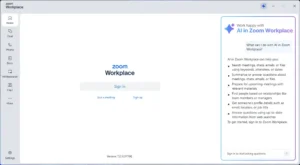
The installer is now listed under Zoom Workplace. Older guides may call it the Zoom client.
- Get the installer from a trusted download source and confirm that the publisher is Zoom.
- Open the downloaded installer and follow the prompts on your computer.
- Launch Zoom Workplace after the setup finishes.
- Choose Join a meeting if someone has invited you, or Sign in if you want to host and manage meetings.
- Check the microphone, speaker, and camera before joining an important call.
Zoom also provides official setup instructions if you need help with the installation process.
Avoid misleading download advertisements or installers offering unrelated programs.
How to Join a Zoom Meeting
If you received an invitation by email or message, click the meeting link. Your browser may ask whether to open the desktop app. Approve that request if you want to join through the installed software.
Or open Zoom, choose Join a meeting, and enter the meeting ID and passcode. Some hosts require you to sign in.
Check the camera preview and join muted if the meeting is already busy.
If you see a waiting room message, nothing is necessarily wrong. The host may need to admit you. Wait for approval.
How to Host Your Own Meeting
Sign in with your account, then start a new meeting or schedule one for later. For a planned call, share the invitation by email or calendar.
Once the meeting starts, use the participant controls to manage the room. You can admit people from the waiting room, mute participants when appropriate, and control who is allowed to share a screen. Set these rules before a large meeting.
For a client presentation, open the relevant files beforehand. Nobody wants to watch you search through folders.
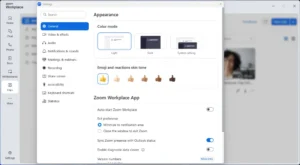
Settings Worth Checking Before Your First Call
Microphone: Choose the device you actually want to use. A laptop might select its built-in mic instead of your headset. Test it.
Speaker: Make sure meeting sound is going to your headphones or speakers. Check Zoom’s output device if you hear nothing.
Camera: Confirm that the selected camera shows the expected picture. Close other apps using the webcam if necessary.
Background and lighting: Blur can hide distractions, though good light on your face matters more. Sit facing a window or lamp rather than putting the brightest light behind you.
Notifications: Close personal messages and unrelated tabs before presenting. Share one app window to limit what others see.
Screen Sharing Without Exposing the Wrong Thing
Sharing your entire screen can reveal notifications and open folders. Sharing one window limits what participants see.
Before clicking Share, check the preview carefully. Close private documents first. Use Stop Share when you finish.
For video clips, enable computer audio if viewers cannot hear sound. Avoid video optimization when showing text; it may look blurry.
Meeting Privacy and Host Controls
A meeting invitation is not something you should post publicly. Anyone who gets a usable link may try to join, unless the host has set restrictions. Share the invitation with the people who need it, not an entire public group.
For hosts, the waiting room acts as a check at the door. You can review who wants to enter before admitting them. Zoom also lets hosts restrict screen sharing, remove disruptive participants, and lock a meeting to stop new arrivals. Locking the room too early can leave a late colleague outside, so use that control with care.
Participants have choices as well. You can keep your camera off, mute your microphone, or leave a meeting. None of these controls replaces judgment about what you say or show. If a discussion involves private client files, confirm everyone in the call belongs there before sharing anything sensitive.
Is Zoom Free to Use?
Yes. Zoom has a free Basic account for hosting meetings, and people can join many meetings without paying or signing up. The free offering includes the main video meeting tools, though meeting duration, participant limits, and access to certain features depend on the plan.
Paid plans make more sense for organizations that need longer meetings, extra management tools, or features such as cloud recording. Occasional interview guests rarely need a subscription.
The key is to separate being a participant from being the host. If a company invites you to a meeting, its meeting settings often determine what you can do. Your own paid account cannot override the host’s controls.
Zoom Desktop App or Browser: Which Should You Use?
You can join some meetings through a web browser without installing anything. That option is useful on a borrowed computer or when you are not allowed to install software. Whether it appears depends on the host’s settings.
The desktop app is a better default for regular use. It keeps meetings and chat in one place. Some desktop features are limited in the browser.
For a one-time meeting, however, using the browser may be enough. A guest who only needs to listen and speak might never notice the missing desktop features. If the host requires an authenticated sign-in or a feature unavailable in the browser, use the app instead.
Common Zoom Problems and What to Try
People cannot hear you. Make sure you are not muted. Then check the selected microphone in Zoom’s audio settings. Reconnect Bluetooth earphones if needed.
You cannot hear the meeting. Confirm that you joined with computer audio. Check the speaker selected inside the app.
The camera shows a black picture. Close other video apps, check camera permissions, and select the correct webcam. Reconnect a USB camera if necessary.
Screen sharing is unavailable. The host may have restricted sharing to certain participants. Ask the host to allow it.
Your call freezes or sounds choppy. Close unnecessary downloads and heavy apps. If your connection is weak, turn off your camera for a while. Audio may still work.
Questions People Ask Before Using Zoom
Can I join a meeting without a webcam?
Yes. You can participate with audio only, and you can turn your camera off at any point. A microphone is useful for speaking, but you can still listen when the meeting permits it.
Can the host see my screen automatically?
No. Joining a meeting does not automatically show everyone your desktop. You need to start screen sharing yourself. Always confirm what you have selected before sharing.
What should I check before an important Zoom call?
Join a little early, test your microphone and speakers, and make sure your name appears correctly. Open any document you plan to present. If you need to share your screen, choose the specific window rather than your entire desktop whenever possible.
What's new
- General maintenance and performance update. Includes bug fixes, stability enhancements, and optimizations for Windows.
Download links
How to install Zoom Workplace?
1. Download the ZIP file.
2. Install the Split APKs Installer application
3. Open the application and click on "Install APKs".
4. Find the folder where the downloaded ZIP is located and select it.
5. Follow the steps that appear on the screen.
-
Popular Apps
-
 Visual Studio Code1.146.0 Microsoft
-
 Malwarebytes5.7.3.376 Malwarebytes
-
 Mister Download Manager0.5.2 Ahmed Nefzaoui
-
 Slack4.53.292 Slack Technologies LLC
-
 TightVNC2.8.89 GlavSoft LLC
-
 Brave Browser157.1.99.56 Brave
-
 Telegram Desktop7.4.4 Telegram FZ-LLC
-
 UltraVNC1.8.3.2 Rudi De Vos
-
 Vivaldi8.3.4191.44 Vivaldi LLC
-
 Pidgin2.14.14 Mark Spencer
-