
MacroDroid – Device Automation
ArloSoft
Mar 27, 2026
85.62 MB
5.62.11
Varies with device

MacroDroid MOD APK Info
The MacroDroid Mod APK specifically caters to power users by providing the “Pro Unlocked” status immediately upon installation. Unlike the standard free version, which restricts users to a limited number of active macros and displays advertisements, this modified version grants access to unlimited macros and removes all ads. This ensures users can build complex, multi-layered automation scripts without hitting arbitrary ceilings or being interrupted, effectively delivering the full premium utility of the application without the standard one-time purchase fee.
Images
Related apps



Description
In the world of Android customization, “automation” is the magic word that separates a standard smartphone user from a power user. While Android is smart out of the box, it often requires manual input for repetitive tasks. You turn on Wi-Fi when you get home, silence your phone during meetings, or rotate your screen for YouTube but lock it for reading.
Table of Contents
MacroDroid is the tool that eliminates these manual steps. It is a powerful task automation app that allows you to configure your device to perform specific actions when certain events (triggers) occur. Unlike its competitor Tasker, which has a notorious learning curve, MacroDroid prides itself on a straightforward, intuitive user interface without sacrificing the depth required for complex scripts.
This comprehensive guide will take you from the basic concepts of MacroDroid to its most advanced features, including shell scripting, intents, and variable manipulation.
Part 1: The Core Philosophy
At its heart, MacroDroid operates on a simple logic flow that mimics computer programming but presents it in a human-readable format. Every automation (called a Macro) consists of three primary components. Understanding these is the key to mastering the app.
1. Triggers (The “When”)
A trigger is the event that kickstarts the macro. Without a trigger, a macro is just a list of instructions waiting to happen. MacroDroid supports over 70 distinct triggers, categorized into groups like:
- Location: Entering/exiting a geofence, connecting to a specific cell tower.
- Device Status: Battery level changes, screen on/off, USB connected.
- Connectivity: Wi-Fi state change, Bluetooth device connected/disconnected.
- Sensors: Light sensor, proximity sensor, device shaken.
- User Input: Widget pressed, volume button long-press, shortcut tile tapped.
- Applications: App launched, app closed, notification received.
Multiple Triggers: A single macro can have multiple triggers. For example, a “Read Messages” macro could be triggered by receiving an SMS OR receiving a WhatsApp message.
2. Actions (The “What”)
Once a trigger fires, the Actions are the steps the phone actually takes. This is the payload of your automation. MacroDroid offers over 100 actions, such as:
- Connectivity: Toggle Wi-Fi, Bluetooth, Hotspot, or Airplane Mode (root often required for the latter).
- Notifications: Display a notification, speak text (Text-to-Speech), play a sound, vibrate.
- Volume/Audio: Set volume levels, mute microphone, record audio.
- Screen: Set brightness, change screen timeout, force rotation.
- File Management: Write to file, copy/move files, delete files.
- UI Interaction: Click a button on screen, scroll, swipe, or paste text (requires Accessibility permissions).
3. Constraints (The “If”)
Constraints are the gatekeepers. They determine whether the actions should actually run after the trigger has fired.
- Example: You want your phone to read incoming SMS messages out loud (Trigger: SMS Received, Action: Speak Text). However, you only want this to happen when you are driving. You would add a Constraint: “Is Connected to Car Bluetooth” or “Speed > 10mph”.
- Constraints can be applied to the entire macro (Prevent the macro from running at all) or to specific actions (Skip just this one step if the condition isn’t met).
Part 2: Interface and Navigation
MacroDroid’s UI is designed to be approachable. Here is a breakdown of the primary sections you will interact with.
The Home Screen
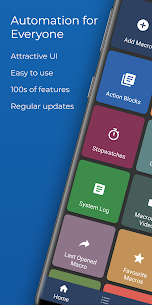
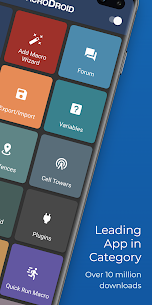
The dashboard is a grid of tiles:
- Macros: The list of your created automations.
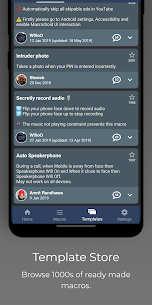
- Templates: A community-driven store where users upload their macros. This is the best place to learn by dissecting other people’s work.
- Settings: Global configuration for the app (Language, Dark Mode, Notification settings).
- Variables: A central hub to manage global variables (more on this in Part 4).
- Geofences: A map interface to define “zones” (Home, Work, Gym) for location-based triggers.
The Macro Editing Screen
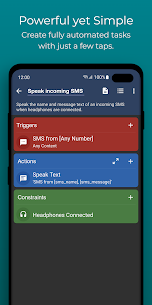
When you create a new macro, you are presented with three distinct color-coded columns (or tabs, depending on settings):
- Red (Triggers): Where you add the events that start the macro.
- Blue (Actions): The list of commands to execute. The order here matters; actions run top-to-bottom.
- Green (Constraints): Conditions that must be met.
This color-coding is consistent throughout the app, making it easy to glance at a script and understand what is happening.
Part 3: Step-by-Step “Recipes”
The best way to learn is by doing. Below are three detailed tutorials ranging from beginner to advanced.
Recipe 1: The “Battery Saver” (Beginner)
Goal: Automatically turn off Wi-Fi and Bluetooth when the battery drops below 20%, but only if the phone is not charging.
- Create a New Macro and name it “Critical Battery Saver”.
- Add Trigger (+ Red Button):
- Go to Battery/Power -> Battery Level.
- Select Decreases to and set the slider to 20%.
- Add Action (+ Blue Button):
- Go to Connectivity -> Configure Wi-Fi.
- Select Disable Wi-Fi.
- Go to Connectivity -> Configure Bluetooth.
- Select Disable Bluetooth.
- Go to Screen -> Brightness.
- Set it to 0% (or a low value).
- Add Constraint (+ Green Button):
- Go to Battery/Power -> Power Connected.
- Select Power Not Connected.
- Why? If you are already charging, you don’t need to save battery.
- Save the Macro.
Recipe 2: The “Intruder Selfie” (Intermediate)
Goal: Take a photo using the front camera if someone tries to unlock your phone and fails twice, then email it to yourself.
- Create a New Macro named “Intruder Alert”.
- Add Trigger:
- Go to Device Events -> Failed Login Attempt.
- Select Number of failures: 2.
- Add Action:
- Go to Camera/Photo -> Take Picture.
- Select Front Facing and check Hide Camera Icon (so they don’t know).
- Add Action:
- Go to Messaging -> Send Email.
- (Note: You may need to configure an SMTP server or use the Gmail interaction plugin).
- Subject: “Someone tried to unlock your phone”.
- Body: “See attached photo.”
- Attach the photo (Most recent photo in the MacroDroid folder).
- Constraints: None needed, though you could add a “Time of Day” constraint if you only want this active at night.
Recipe 3: YouTube Rotation Handler (UI Logic)
Goal: Force the screen to Landscape when YouTube opens, and revert to “Auto-Rotate” when it closes, but only if you aren’t already in Landscape.
- Create a New Macro named “YouTube Rotate”.
- Add Trigger:
- Go to Applications -> Application Launched/Closed.
- Select Application Launched -> YouTube.
- Add Trigger (Secondary):
- Go to Applications -> Application Launched/Closed.
- Select Application Closed -> YouTube.
- Add Action (Using Logic):
- This macro uses If/Else logic within the Actions pane.
- Add Action: Conditions/Loops -> If Clause.
- Tap the If condition: Trigger Fired -> Application Launched -> YouTube.
- Child Action (Inside the If): Screen -> Force Screen Rotation -> Landscape.
- Else Clause: Add an Else action.
- Child Action (Inside the Else): Screen -> Force Screen Rotation -> Auto-Rotate.
- End If: Close the logic block.
- Result: When YouTube opens, the “If” block runs (Landscape). When it closes, the “Else” block runs (Auto-Rotate).
Part 4: Advanced Features – Variables and Arrays
To move beyond simple “If This Then That” automation, you must master variables. Variables are containers that store information (data) which can be changed and read by macros.
Types of Variables
- Boolean: True or False. (e.g.,
is_sleeping,is_connected_to_car). - Integer: Whole numbers. (e.g.,
failed_attempts,volume_level). - String: Text. (e.g.,
last_sms_content,current_song). - Decimal: Numbers with fractions.
- Array/Dictionary (v5.0+): Advanced structures that hold lists of data.
Use Case: Custom Notification Counter
Imagine you want a custom sound to play only after you have received 5 emails.
- Create an Integer Variable (Local) named
email_count, default0. - Trigger: Notification Received (Gmail).
- Action:
- Variables -> Set Variable ->
email_count->Value + 1.
- Variables -> Set Variable ->
- Action (Logic):
- If
email_count= 5. - Media -> Play Sound -> “Siren.mp3”.
- Variables -> Set Variable ->
email_count= 0 (Reset the counter). - End If.
- If
Magic Text
Magic Text is MacroDroid’s way of letting you insert dynamic data into strings. Whenever you see a “…” button next to a text field, that is Magic Text.
{battery}inserts the current battery percentage.{time}inserts the current time.{notification_title}inserts the title of the last notification.{last_loc_lat},{last_loc_long}inserts your GPS coordinates.
Example: Sending an SMS that says “I am currently at {last_loc_link}”. The recipient receives a clickable Google Maps link.
Part 5: The Power User Toolkit (Shell, Intents, Plugins)
1. Shell Scripts
For users familiar with Linux or ADB (Android Debug Bridge), MacroDroid allows the execution of shell commands. This creates a bridge to system-level functions that standard actions cannot reach.
- Rooted Devices: Can execute almost any system command.
- Example:
reboot recoveryto restart into recovery mode. - Example:
pm disable com.facebook.katanato completely freeze the Facebook app.
- Example:
- Non-Rooted: Limited to ADB shell commands if the
ADB Hackis applied (requires a PC connection one time to grant permissions).
2. Android Intents
Intents are the internal messaging system of Android. Apps use them to talk to each other. MacroDroid can send broadcast intents or start activities.
- Tasker Integration: Many apps have “Tasker Integration,” which is really just them listening for specific Intents. MacroDroid can send these just as well as Tasker can.
- Example (Obsidian): You can use an Intent to append text to a specific note in your Obsidian vault without opening the app.
- Action: Send Intent
- Target: Activity
- Data URI:
obsidian://advanced-uri?vault=MyVault&filepath=DailyNote&data=Hello - This allows for background data logging.
3. Plugins
MacroDroid supports the vast majority of Tasker Plugins. This is a massive feature. If MacroDroid doesn’t have a native action for something (e.g., advanced text parsing or specific smart home control), you can install a plugin like AutoInput, AutoVoice, or Unified Remote.
- To use them: Add Action -> Tasker/Locale Plugin -> Select the installed plugin.
Part 6: UI Interaction (No Root Required)
One of MacroDroid’s most impressive modern features is the UI Interaction action. Utilizing Android’s Accessibility Services, MacroDroid can “see” your screen and “touch” buttons for you.
Capabilities:
- Click: Tap a button based on X,Y coordinates or (better yet) the Text Content of the button (e.g., “Identify button with text ‘Skip Intro’ and click it”).
- Paste: Paste text into the currently focused field.
- Gesture: Swipe from point A to point B.
Use Case: Auto-Skip Ads You can create a macro that triggers when a video app is open, waits for the text “Skip Ad” to appear on screen, and uses UI Interaction to click it automatically.
Warning: Overusing Accessibility services can sometimes cause slight UI lag on older devices, though modern phones handle it well.
Part 7: Comparison with Tasker and Automate
The “Big Three” of Android automation are MacroDroid, Tasker, and Automate. Here is how MacroDroid stacks up.
| Feature | MacroDroid | Tasker | Automate |
|---|---|---|---|
| Learning Curve | Low/Medium. Very intuitive, linear logic. Best for 90% of users. | High. Requires a programmer mindset. UI is utilitarian and complex. | Medium. Uses flowcharts. Visual learners love it; others find it messy. |
| UI Design | Modern Material Design, clean, colorful. | Functional but dated (though improving). | Node-based flowchart interface. |
| Power/Depth | High. Covers 95% of what Tasker can do. | Extreme. If Android allows it, Tasker can do it. | High. Very granular control over flows. |
| Plugin Support | Yes (Tasker Plugins). | Yes (Native). | Yes (Tasker Plugins). |
| Code Export | Can export as app (via separate tool) but less robust. | App Factory allows exporting macros as standalone APKs easily. | Less focus on standalone app creation. |
| Price | Free (5 macros) / Pro (One-time fee). | Paid upfront (no free version on Play Store). | Free (limited blocks) / Premium. |
Verdict: Choose MacroDroid if you want to get things done quickly and easily without reading a wiki for 3 hours. Choose Tasker if you want to build standalone apps or need extremely obscure system variable access.
Part 8: Troubleshooting and Best Practices
Even the best macros fail sometimes. Here is how to debug them.
1. The System Log
The most important tool in MacroDroid is the System Log (found on the Home Screen tiles).
- It records every trigger firing, every action taken, and every constraint check.
- Red Text: Indicates an error.
- Usage: If a macro isn’t working, check the log. Did the trigger fire? Did the constraint prevent the action?
2. Battery Optimization (The #1 Killer)
Modern Android (Samsung OneUI, Xiaomi MIUI, etc.) loves to kill background apps to save battery. If MacroDroid is killed, your automation stops.
- Fix: You must go to your phone settings -> Apps -> MacroDroid -> Battery -> Unrestricted (or “Don’t Optimize”).
- Notification: Keep the MacroDroid persistent notification enabled. This helps the system recognize it as a foreground service that shouldn’t be killed.
3. Permissions
MacroDroid needs a lot of permissions. Location, Accessibility, Draw Over Other Apps, Notification Access, Write Settings.
- If an action is greyed out or fails, check if you have granted the specific permission it needs. The app usually prompts you, but sometimes updates reset permissions.
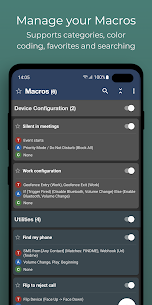
4. Organizing with Categories
As you build more macros, your list will get messy.
- Use Categories (e.g., “Car”, “Home”, “System”, “Security”) to group macros.
- You can color-code categories to make the list visually parsable.
5. Using the “Stopwatch” for Delays
Standard “Wait” actions (e.g., Wait 5 minutes) are fine, but if the phone reboots, the wait is cancelled.
- For long-duration tracking, use the Stopwatch feature. Start a stopwatch, and use a trigger “Stopwatch reaches X time” to fire the next step. This survives reboots.
Conclusion
MacroDroid represents the sweet spot of Android automation. It democratizes the power of scripting, making it accessible to anyone who can understand “If This, Then That,” while retaining enough depth for serious power users to build complex, variable-driven systems.
Whether you just want to silence your phone at night or build a complex anti-theft system that tracks GPS coordinates and takes photos, MacroDroid is likely the only tool you will need. Start with the templates, experiment with the triggers, and soon you will find using a non-automated phone feels archaic.
What's new
Fixed issue with category name showing in wrong color in light mode on action block screen. Fixed issue where animation overlay action would not invoke [this macro] when clicked. Fixed issue where floating text could appear at slightly different y location when dragged and redisplayed later. Fixed issue where file operation (all file access) did not work correctly with delete option. Fixed issue with calendar end event not working correctly when using check in advance.
Download links
An ad will pop up before the download. Close it, click download again—ads keep us going, thanks!


