
Smart Launcher 6 ‧ Home Screen
Smart Launcher Team
Feb 25, 2026
21.4 MB
6.6 build 004
7.0

Smart Launcher 6 MOD APK Info
The Smart Launcher 6 Mod APK is designed for users who want to bypass the paywall and access the complete suite of premium features. This modification specifically offers Pro Unlocked status, enabling the Feature Pack that is usually reserved for paid subscribers. With this version, you can utilize the highly efficient Pop-up Widgets, create and edit custom app drawer categories, and apply advanced adaptive icon shapes. It removes all restrictions on the Fluid Grid and widget stacking, ensuring you get the fully optimized, aesthetic experience of the launcher without any additional ad-blocking or unrelated hacks—just the pure Pro functionality.
Images




Related apps



Description
In the vast and often chaotic ecosystem of Android customization, “Launcher” apps are the gatekeepers. They define how we interact with our digital lives, how we launch our tools, and how we frame our memories. For over a decade, names like Nova Launcher have dominated the conversation with a philosophy of infinite manual tweaking. But sitting comfortably alongside the giants—and often outpacing them in innovation—is Smart Launcher 6.
Table of Contents
Developed by the Smart Launcher Team (led by the GinLemon group in Italy), Smart Launcher has never been just another grid of icons. Since its inception, it has dared to be different. It rejected the standard Android desktop paradigm in favor of something radical: automatic organization and a layout designed specifically for how human hands actually hold phones.
With the release and subsequent updates of version 6 (and the recent 6.6 polish), the app has matured from a niche alternative into a powerhouse of design and utility. It promises to organize your chaotic app drawer instantly, theme your phone beautifully without requiring a degree in graphic design, and put every digital tool you need within the reach of your thumb.
This comprehensive article explores every facet of Smart Launcher 6, dissecting why it might just be the best piece of software you can install on your Android device today.
The Core Philosophy: “Smart” Over “Manual”
To understand Smart Launcher 6 (SL6), you must first unlearn the traditional Android behavior. Most launchers act as blank canvases. They give you empty screens and a drawer full of alphabetized icons, saying, “Here, you figure it out.” You spend hours dragging icons, creating folders, and aligning widgets.
SL6 takes the opposite approach. Its philosophy is “Set it and forget it.”
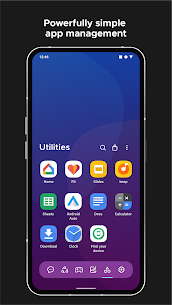
When you first install Smart Launcher, it doesn’t ask you where you want your WhatsApp or your Calculator. It scans your device, identifies your apps, and instantly sorts them into contextual categories: Communication, Internet, Games, Media, Utilities, and Settings. In seconds, a phone with 200 apps transforms from a cluttered mess into a structured library.
Furthermore, SL6 is built around the reality of modern smartphone hardware. Screens are getting taller, but our thumbs aren’t getting longer. The interface is aggressively optimized for one-handed usage. Key interactive elements—search bars, category tabs, frequent apps—are biased toward the bottom of the screen. This design choice acknowledges that efficiency isn’t just about software speed; it’s about ergonomic speed.
Visual Design: The Master of First Impressions
If standard Android is a utilitarian office block, Smart Launcher 6 is a modern art museum. It is widely regarded as one of the most aesthetically pleasing launchers out of the box, requiring minimal effort to look “pro.”
Ambient Theme and Material You
Long before Google introduced “Material You” (monet) in Android 12, Smart Launcher was experimenting with color extraction. In SL6, this has been perfected. The Ambient Theme engine analyzes your current wallpaper and extracts a palette of dominant and accent colors. It then applies these colors system-wide across the launcher: search bars, folder backgrounds, widget accents, and even text colors shift to harmonize with your background.
This creates a sense of visual continuity that is often lacking in other third-party launchers. If you change your wallpaper to a sunset, your entire launcher interface warms up with oranges and purples. Switch to a forest scene, and it cools down to deep greens and teals.
Liquid Glass and Immersive Effects
One of the standout design languages introduced in the version 6 era is the “Liquid Glass” effect. While many launchers use flat, solid colors, SL6 utilizes advanced blur and transparency (where supported by the device hardware). This gives the interface a premium, depth-filled look similar to iOS or Windows Aero, but with a distinct Android flavor. The menus don’t just pop up; they seem to float over your content, blurring the background gently to maintain focus without losing context.
Adaptive Icons and Animations
Smart Launcher fully embraces the Adaptive Icon standard. This means you can force all your icons—regardless of the developer’s original design—into a uniform shape (squircle, circle, hexagon, flower, etc.).
But SL6 goes further. It includes a physics engine for animations. When you drag an icon, it has weight. When you scroll through the category list, there is a satisfying elasticity. These micro-interactions make the phone feel faster and more responsive, bridging the gap between the “stiffness” of stock Android and the “fluidity” users often praise in iOS.
The App Drawer: Organization Autopilot
The App Page (drawer) is the brain of Smart Launcher. It is controversial for purists who want A-Z lists, but indispensable for those who value speed.
Automatic Categorization
As mentioned, the launcher sorts apps into categories. These live on the side (or bottom) of the app drawer as tabs.
- Communication: Phone, SMS, WhatsApp, Telegram, Discord.
- Internet: Chrome, Firefox, Social Media apps.
- Games: All your installed games.
- Media: YouTube, Spotify, Netflix, Gallery.
- Utilities: Calculator, Notes, Banking, File Managers.
- Settings: System settings and configuration tools.
The sorting algorithm is cloud-based and constantly improving. If a new app is released, SL6 usually knows where it belongs within days. This system reduces cognitive load. You don’t look for “Spotify”; you look for “Music.”
Customizing Categories
SL6 acknowledges that its AI isn’t perfect. You have full control to:
- Edit Categories: Create custom categories (e.g., “Work,” “Travel,” “Crypto”).
- Reorder Apps: You can sort apps within categories by usage frequency (highly recommended), installation date, or color.
- Icon Visibility: You can hide bloatware apps without uninstalling them, keeping your drawer pristine.
The Home Screen: Fluidity Meets Structure
The home screen in Smart Launcher 6 is technically a “page,” just like the app drawer or the search page. This modularity allows you to arrange your digital workspace freely.
The Fluid Grid System
Traditional launchers use a rigid grid (e.g., 5×6). If you try to place a widget that is slightly too big, it snaps to the next available row, often leaving ugly gaps. SL6 uses a Fluid Grid. It allows you to place widgets and icons with much finer granularity. You can resize a widget pixel-by-pixel to make it fit perfectly beside an icon. This is a godsend for “ricers” (customization enthusiasts) who want perfectly aligned setups without fighting a snapping grid.
The Iconic “Flower” Layout and Beyond
Smart Launcher became famous for its “Flower” layout—a circle of 6 icons in the center of the screen (Dialer, Browser, Music, etc.). While SL6 has moved towards more modern grid layouts, the “Flower” (and other geometric arrangements like the “Arch” or “Honeycomb”) remains available. This is distinct to Smart Launcher. It allows you to build a home screen that looks like a control panel rather than a spreadsheet of apps.
Widget Stacks and Fine Positioning
A feature borrowed from iOS but implemented with more freedom is the Widget Stack. You can drop multiple widgets onto the same space and swipe between them. This is incredible for saving screen real estate. You can have your Calendar, Weather, and Music player all occupying the same 4×2 block at the top of your screen, accessible with a simple swipe.
Killer Features That Change How You Use Your Phone
This section highlights the “sticky” features—the ones that make it impossible to switch back to another launcher once you’ve used them.
Smart Search: More Than Just a Bar
The Smart Search bar (usually accessible by swiping down or placed at the bottom) is a command center.
- Universal Search: It searches apps, contacts, and the web simultaneously.
- Inline Calculations: Type “25*44” and it gives you the answer without opening the calculator.
- Web Shortcuts: Type “g cats” to search Google for cats, or set up custom shortcuts for other sites.
- Contact Actions: Search a name, and tap a button to immediately call or WhatsApp them.
Pop-Up Widgets: The Secret Weapon
This is arguably the best feature in Smart Launcher 6. Any app icon on your home screen can hold a secret. If you double-tap an icon, it can launch a widget in a pop-up window.
- Example 1: You have a Spotify icon. Tap it to open Spotify. Double-tap it to pop up the Spotify music control widget.
- Example 2: You have a Calendar icon. Double-tap it to see your agenda widget.
- Example 3: Double-tap your WhatsApp icon to see a widget of your recent chats. This keeps your home screen incredibly clean—displaying only icons—while retaining the functionality of having 10 widgets ready to go.
Gestures and Hotkeys
SL6 supports a robust gesture system:
- Double Tap on empty space: Turn off screen (or lock).
- Swipe Up/Down/Left/Right: Configurable to launch apps, shortcuts, or SL pages.
- Two-finger swipes: Even more triggers.
These gestures are incredibly responsive and can be used to hide the status bar or navigation bar for a truly full-screen experience.
Ecosystem Integration: Icon Pack Studio & SL Bridge
The Smart Launcher Team doesn’t just make a launcher; they’ve built a mini-ecosystem.
Icon Pack Studio (IPS): While SL6 supports standard icon packs from the Play Store, it integrates deeply with Icon Pack Studio, another app by the same developers. IPS allows you to create your own icon packs. You choose the shape, the color palette (which can sync with SL6’s Ambient Theme), the stroke width, and the effects. The result is that you can have icons that match your wallpaper perfectly every single time you change it. No other launcher offers this level of symbiotic customization.
SL Bridge (Google Feed): By default, SL6 has a “News” page (powered by Microsoft Start). However, most Android users prefer the Google Discover feed. Due to Google’s API restrictions, third-party launchers cannot include this natively. The team provides “SL Bridge,” a small add-on app that seamlessly integrates the Google Discover panel into the left-side page of the launcher. It works just as smoothly as on a Pixel device.
Smart Launcher 6 vs. The Titans
How does it stack up against the market leaders?
Vs. Nova Launcher
- The Difference: Nova is the “Lego” of launchers; it gives you the bricks and lets you build anything. Smart Launcher is the “Architect”; it builds a beautiful house for you and lets you decorate the rooms.
- Nova Wins: If you want granular control over animation speeds in milliseconds, or if you want a purely traditional desktop experience.
- Smart Launcher Wins: If you want automatic organization, better out-of-the-box aesthetics, modern features like widget stacks/pop-ups, and a setup that feels “fresh” rather than functional.
- Verdict: Nova feels like a tool for power users of 2015; Smart Launcher feels like a tool for power users of 2026.
Vs. Niagara Launcher
- The Difference: Niagara is a minimalist list. It strips everything away. Smart Launcher is a structured grid.
- Niagara Wins: If you want extreme minimalism and zero distractions.
- Smart Launcher Wins: If you like minimalism but still want widgets, folders, and a visual home screen. SL6 is a “maximalist” launcher disguised as a minimalist one.
Free vs. Pro: Is the Upgrade Worth It?
Smart Launcher follows a “Freemium” model. The free version is robust, but the “Feature Pack” (Pro) unlocks the true potential.
What you get for Free:
- Automatic Categorization.
- Basic Fluid Grid.
- News Page.
- Basic Theming.
What Pro Unlocks (Subscription or Lifetime Purchase):
- Pop-up Widgets: (Essential).
- Advanced Adaptive Icons: Custom shapes and effects.
- Blur Effects: The “Liquid Glass” look.
- Folder creation in App Drawer: Edit the categories manually.
- Widget Stacks.
- More Gestures.
Verdict: The Free version is a good trial, but Smart Launcher 6 is fundamentally a different experience with the Pro features. The “Pop-up Widget” feature alone justifies the cost for many users. The developers offer a Lifetime purchase option, which is highly praised in an era of subscription fatigue.
Performance and Battery Life
One concern with “Smart” launchers is resource usage. Does the categorization engine drain battery? Does the Ambient Theme slow down the phone?
In testing on devices ranging from high-end Galaxy S-series phones to budget devices:
- Battery: Negligible impact. The sorting happens only when apps are installed. The Ambient Theme calculation happens only when the wallpaper changes.
- Speed: SL6 is incredibly lightweight. It often feels snappier than the stock One UI or Pixel Launcher because animations are shorter and touch latency is optimized.
- Stability: Early versions of SL6 had bugs with widgets, but recent updates (6.4, 6.5, 6.6) have solidified the code base. It is now rock-stable.
Conclusion
Smart Launcher 6 is not just a replacement for your home screen; it is an upgrade to your phone’s operating system logic. It challenges the assumption that we need to organize our apps manually. It challenges the idea that widgets must be cluttered squares on a grid.
By focusing on muscle memory (categories always in the same place) and ergonomics (content at the bottom), it makes using a smartphone faster. By integrating Ambient Themes and Fluid Grids, it makes the phone more beautiful.
For the user who is tired of the stale “grid of icons” concept that has dominated Android since 2008, Smart Launcher 6 offers a glimpse into the future. It is sophisticated, opinionated, and undeniably smart.
What's new
Version 6.6 - The Liquid Glass theme is out of beta and now available for everyone - Infinite Scroll can now be enabled on both home pages and the dock - Pinch and rotate gestures are now available without enabling experimental features - Fixed a bug that made widgets resize incorrectly - You can now customize the look of widgets and launcher pages separately Read more here: https://www.smartlauncher.net/blog/2025wrapupsl66
Video
Download links
An ad will pop up before the download. Close it, click download again—ads keep us going, thanks!