
Fake GPS

Images

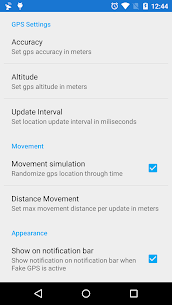

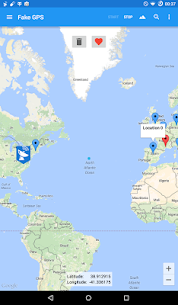
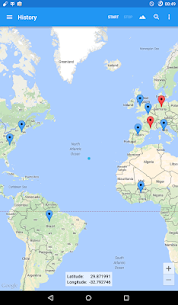

Related apps





Description
If you’ve ever needed to change your device location for testing, privacy, or location-based app behavior, Fake GPS is one of the most straightforward tools available on Android. The app published under the package name com.blogspot.newapphorizons.fakegps on the Google Play Store allows users to simulate a custom GPS position without physically traveling.
Table of Contents
In this detailed review, I’ll explain how Fake GPS works, who should use it, how to install and configure it correctly, its performance behavior, safety implications, troubleshooting steps, and when you should not use it. This guide is written for users who want clarity, not vague marketing promises.
App Overview: What Is Fake GPS?
Fake GPS is an Android location spoofing application designed to override your device’s GPS coordinates with a manually selected location on a map.
Category: Utilities / Developer Tools
Platform: Android
Primary Function: Simulated GPS location control
Intended Users: Developers, QA testers, privacy-focused users, and advanced Android users
The app works by leveraging Android’s mock location framework, which allows developers to simulate GPS signals during testing. Instead of modifying system firmware or rooting your device (in most cases), Fake GPS relies on official Android developer settings.
This makes it both powerful and relatively safe — provided it’s used responsibly.
How Fake GPS Works on Android
Android includes a built-in feature called “Allow mock locations” within Developer Options. When you enable this feature and assign Fake GPS as the mock location app, it can:
- Override your device’s reported GPS coordinates
- Send simulated latitude and longitude data
- Affect apps that rely on location services
- Trick apps into believing you are somewhere else
The app does not modify satellite signals or your SIM card data. It simply replaces the GPS coordinates that apps read through Android’s location API.
Key Features of Fake GPS
1. Interactive Map Location Selection
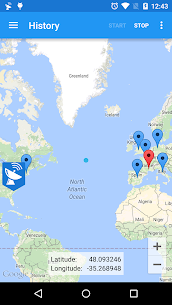
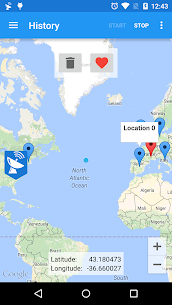
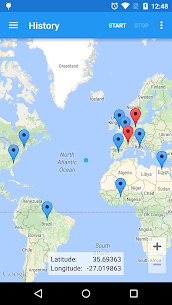
The app provides a simple map interface where you can:
- Search for cities or addresses
- Manually drop a location pin
- Zoom in for precision positioning
- Enter exact coordinates
This level of control is useful for:
- App development testing
- Geo-restricted feature analysis
- Debugging location-based services
2. Custom Coordinates Input
Instead of relying only on map selection, you can manually enter:
- Latitude
- Longitude
This is particularly useful for:
- Testing location-sensitive apps
- Simulating specific geographic edge cases
- Academic or technical experimentation
For developers working on geofencing features, this precision is essential.
3. Root and Non-Root Support
Fake GPS can work without root on most modern Android devices. However:
- Some apps with advanced anti-spoofing detection may require root access
- Certain Android versions restrict mock location functionality
- Google Play Services updates sometimes affect compatibility
For most general use cases, root is not required.
4. Lightweight Performance
One of the practical advantages of Fake GPS is that it:
- Consumes minimal RAM
- Does not heavily tax CPU resources
- Runs quietly in the background
- Has a small installation footprint
Since it only replaces GPS signals and does not render heavy UI elements continuously, battery drain is usually moderate.
Real-World Use Cases
Here’s where Fake GPS becomes practically useful:
✔ App Development & Testing
Developers can simulate different regions without traveling physically.
✔ Privacy Control
Users who don’t want apps tracking real-time location can mask their real coordinates.
✔ Location-Based Feature Testing
Testing delivery apps, ride-sharing, or weather apps in multiple regions.
✔ Educational Demonstrations
Geography teachers or technical instructors can demonstrate global positioning behavior.
How to Download and Install Fake GPS (Android)
Step 1: Install from Official Source
Download the app from the Google Play Store:
Package Name: com.blogspot.newapphorizons.fakegps
Always prefer the official store version to minimize security risks.
Step 2: Enable Developer Options
- Go to Settings
- Tap About Phone
- Tap Build Number 7 times
- Enter PIN if prompted
Developer Options will now be enabled.
Step 3: Set Fake GPS as Mock Location App
- Go to Settings
- Open Developer Options
- Tap Select mock location app
- Choose Fake GPS
Step 4: Start Location Spoofing
- Open Fake GPS
- Select your desired location
- Tap the start button
- Minimize the app
Your device will now report the simulated GPS coordinates.
Safety Analysis: Is Fake GPS Safe?
Official Version (Google Play Store)
Downloading from the official Play Store reduces risks because:
- Google scans apps for malware
- Permissions are clearly listed
- Updates are controlled
The app typically requires:
- Location access
- Internet access (for maps)
These are expected permissions for its functionality.
Third-Party APK Files
If you download Fake GPS APK from external websites:
- Risk of tampering
- Malware injection possibility
- Modified code
If you must use third-party APKs:
- Scan with antivirus
- Verify SHA signatures
- Avoid unknown repositories
Privacy Considerations
Fake GPS changes GPS coordinates, but it does NOT:
- Change IP address
- Hide mobile network location
- Replace VPN functionality
If an app uses IP-based location detection, Fake GPS alone will not fully mask your location.
Performance & Compatibility Insights
Based on general Android behavior:
- Works best on Android 8.0+
- May conflict with high-security apps (banking, games)
- Some apps detect mock locations and block usage
- Emulator usage may cause instability
Google Play Services updates sometimes improve or restrict mock location handling.
Common Problems & Troubleshooting
Issue 1: Location Not Changing
Cause: Mock location not properly enabled
Fix: Re-check Developer Options and reassign the mock app.
Issue 2: App Detects Fake Location
Cause: Anti-spoofing mechanisms
Fix Options:
- Disable location accuracy
- Turn off WiFi scanning
- Use airplane mode + WiFi combination
- Advanced users may consider root solutions
Issue 3: GPS Jumps Back to Real Location
Cause: Location accuracy settings
Fix:
- Set location mode to “Device Only” (if available)
- Disable Google Location Accuracy
Issue 4: App Crashes
Cause: Android version conflict
Fix:
- Clear cache
- Reinstall from Play Store
- Check system updates
When You Should NOT Use Fake GPS
Avoid using Fake GPS if:
- You rely on banking or financial apps that may flag suspicious activity
- You are playing games that prohibit location spoofing
- You need accurate emergency location services
- Your employer monitors device compliance
- Your Android device is locked down (enterprise-managed)
Improper use may violate app terms of service.
Frequently Asked Questions (FAQs)
1. Does Fake GPS require root?
No. It works on most Android devices using Developer Options. Root may be needed only for bypassing advanced detection systems.
2. Can Fake GPS change my IP address?
No. It only changes GPS coordinates. For IP masking, a VPN is required.
3. Will apps detect that I’m using Fake GPS?
Some apps can detect mock location settings and may block access.
4. Is it legal to use Fake GPS?
Using the app itself is legal. However, violating service terms of specific apps may have consequences.
5. Can I use Fake GPS with Pokémon Go?
Many location-based games have strong anti-spoofing systems and may suspend accounts.
Final Verdict: Should You Download Fake GPS?
If your goal is:
- App testing
- Location debugging
- Privacy experimentation
- Educational demonstrations
Then Fake GPS is a lightweight, functional, and easy-to-configure solution.
However, it is not a VPN replacement, not a full anonymity tool, and not guaranteed to bypass anti-spoofing systems in secure applications.
What's new
Redo Simulation engine for better performance
Redo Settings Screen
Download links
An ad will pop up before the download. Close it, click download again—ads keep us going, thanks!


